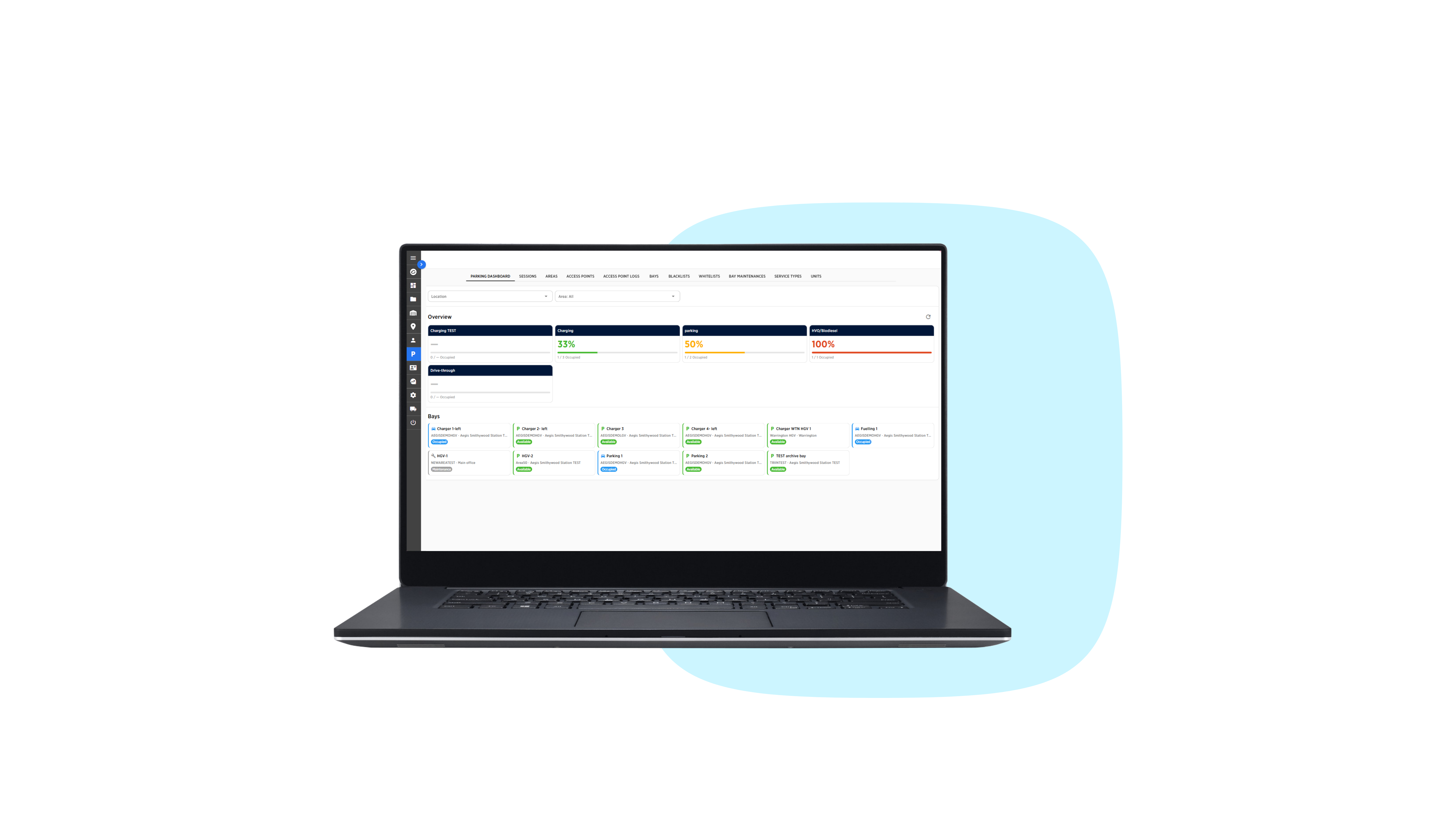




Fleet Manager

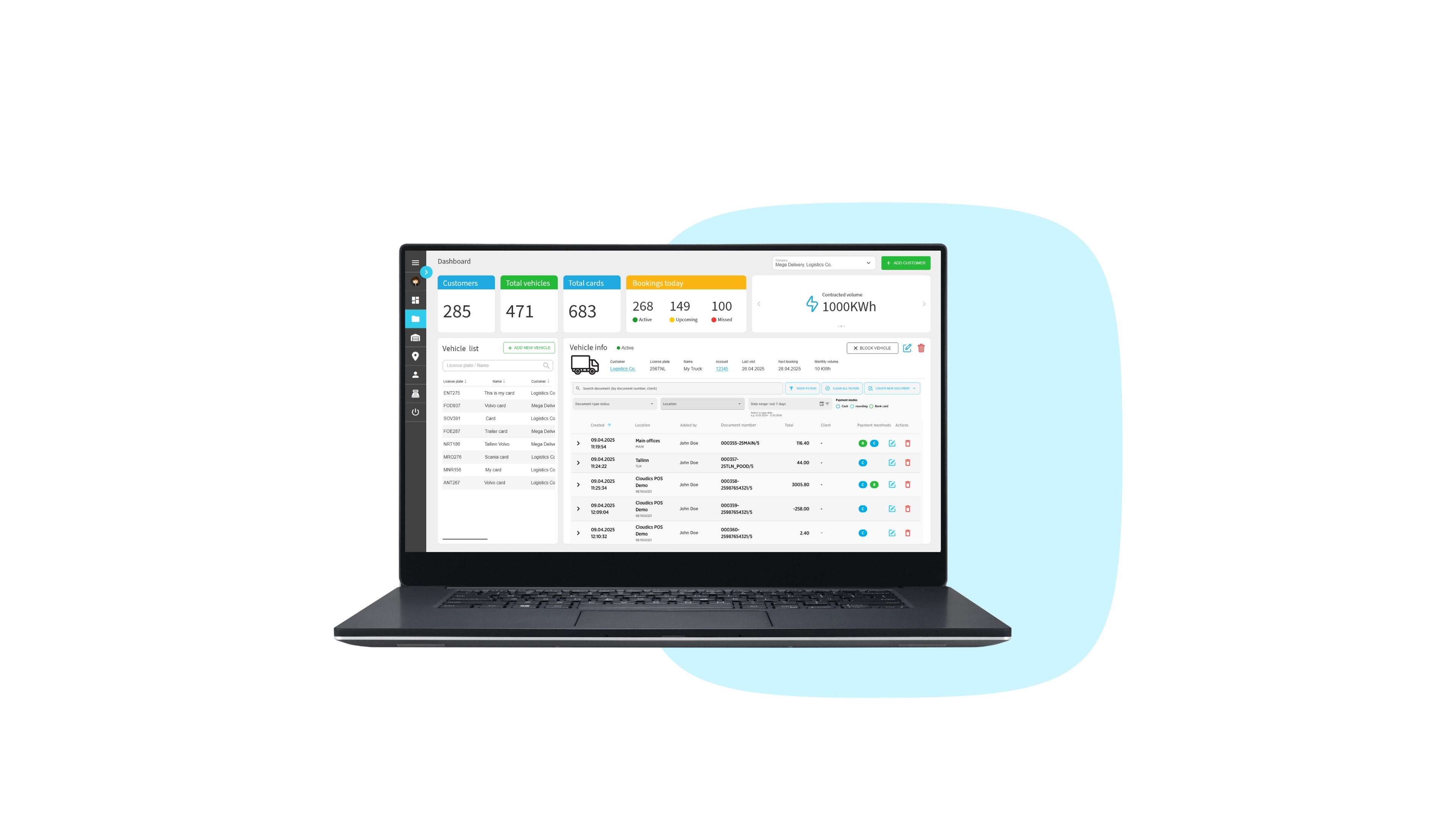
  • 1. Dashboard

    Visualised real-time data of your commercial fleet

  • 2. Vehicle List

    Comprehensive overview of your vehicles

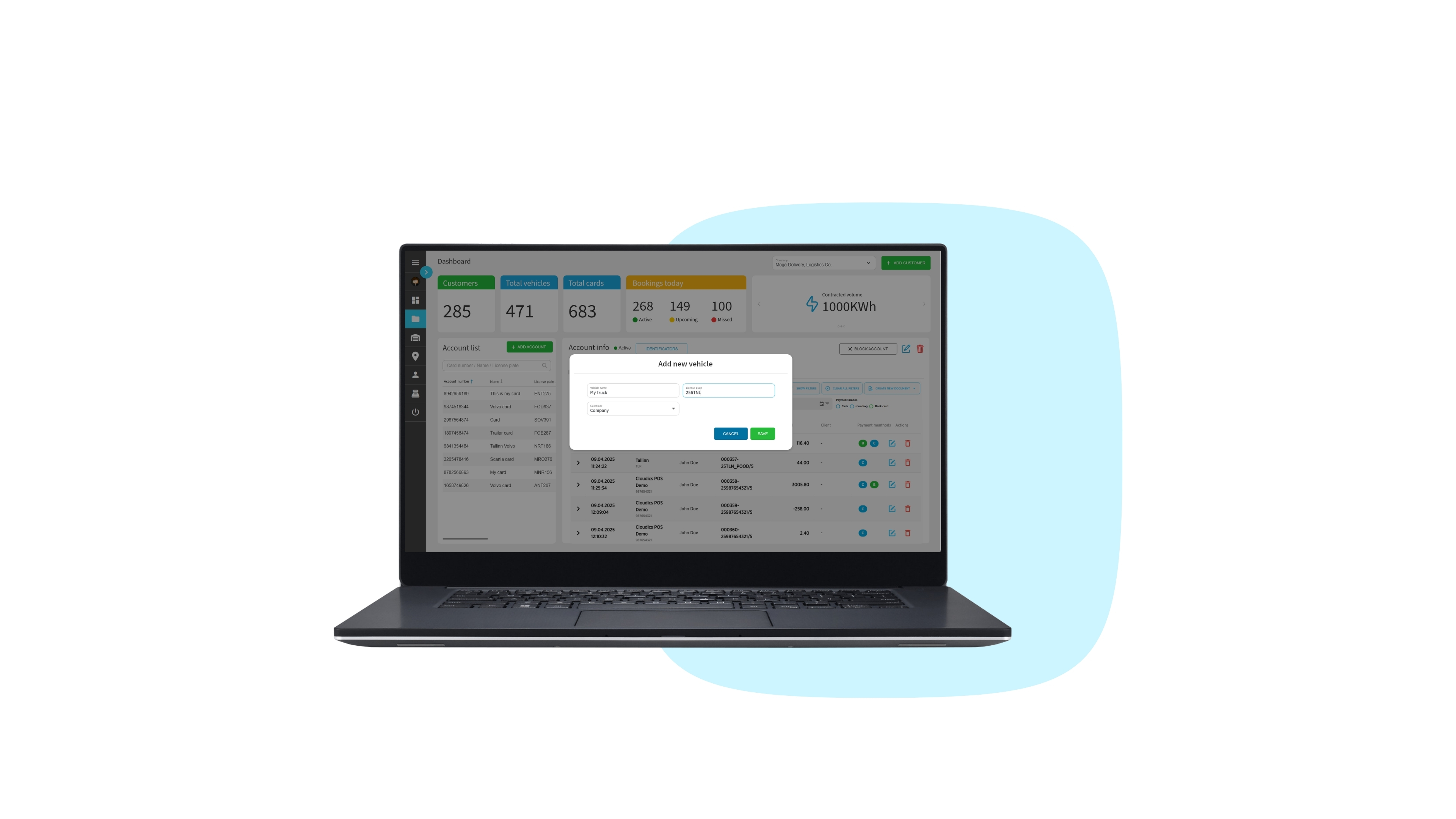
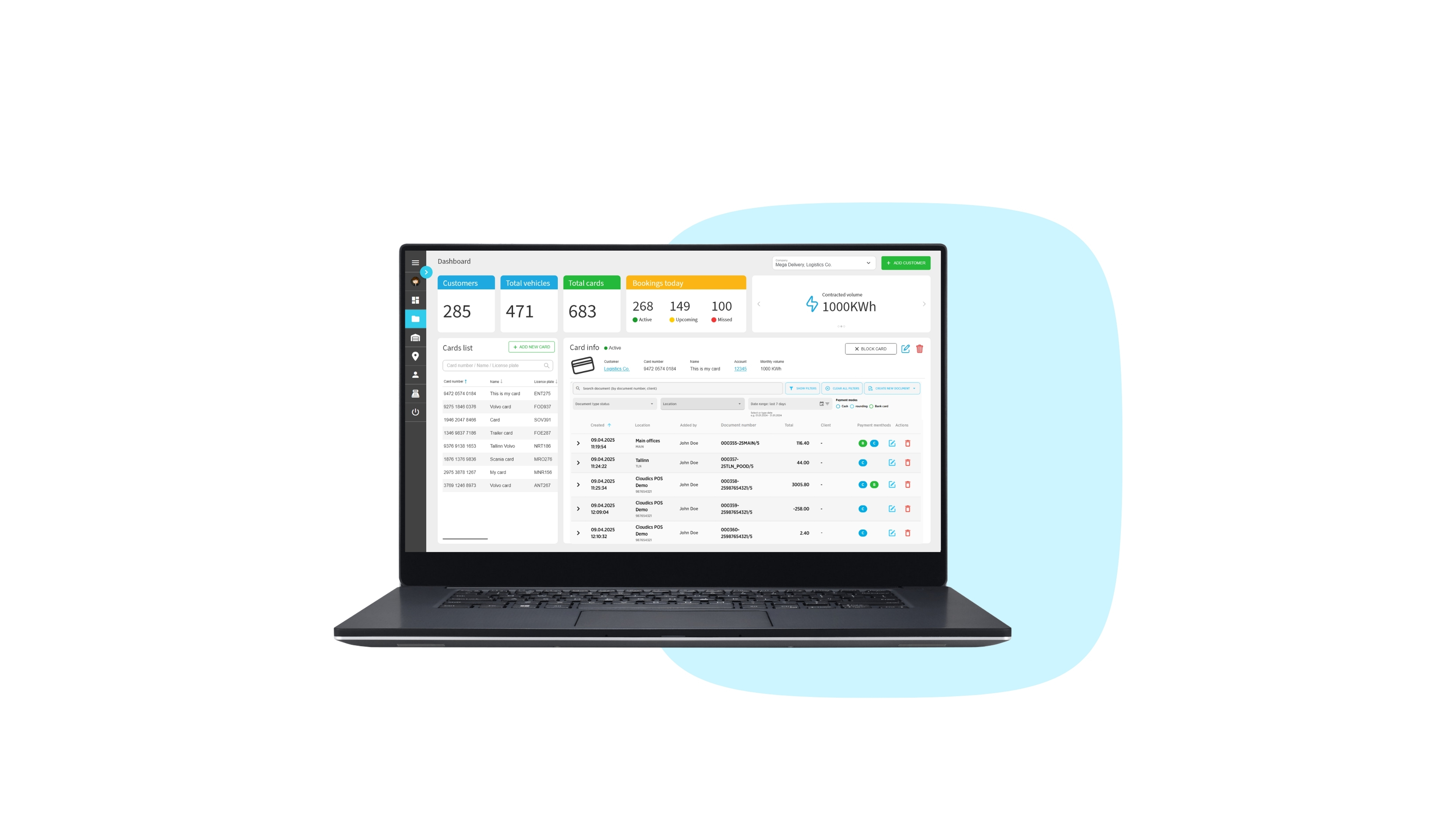
  • 3. Add New Vehicle

    Adding vehicles to your list made simple

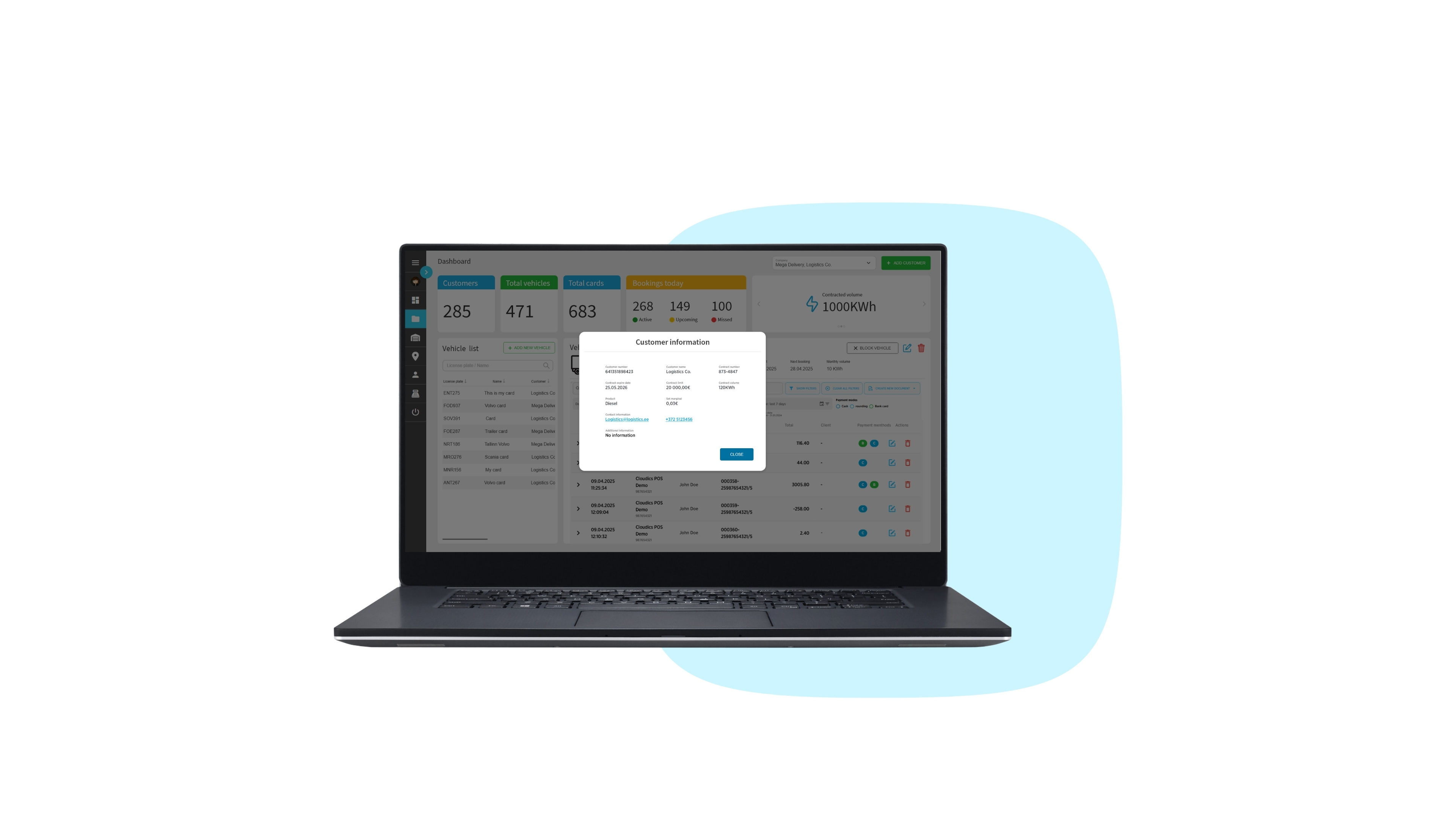
  • 4. Customer Info

    Detailed customer information for easier account management

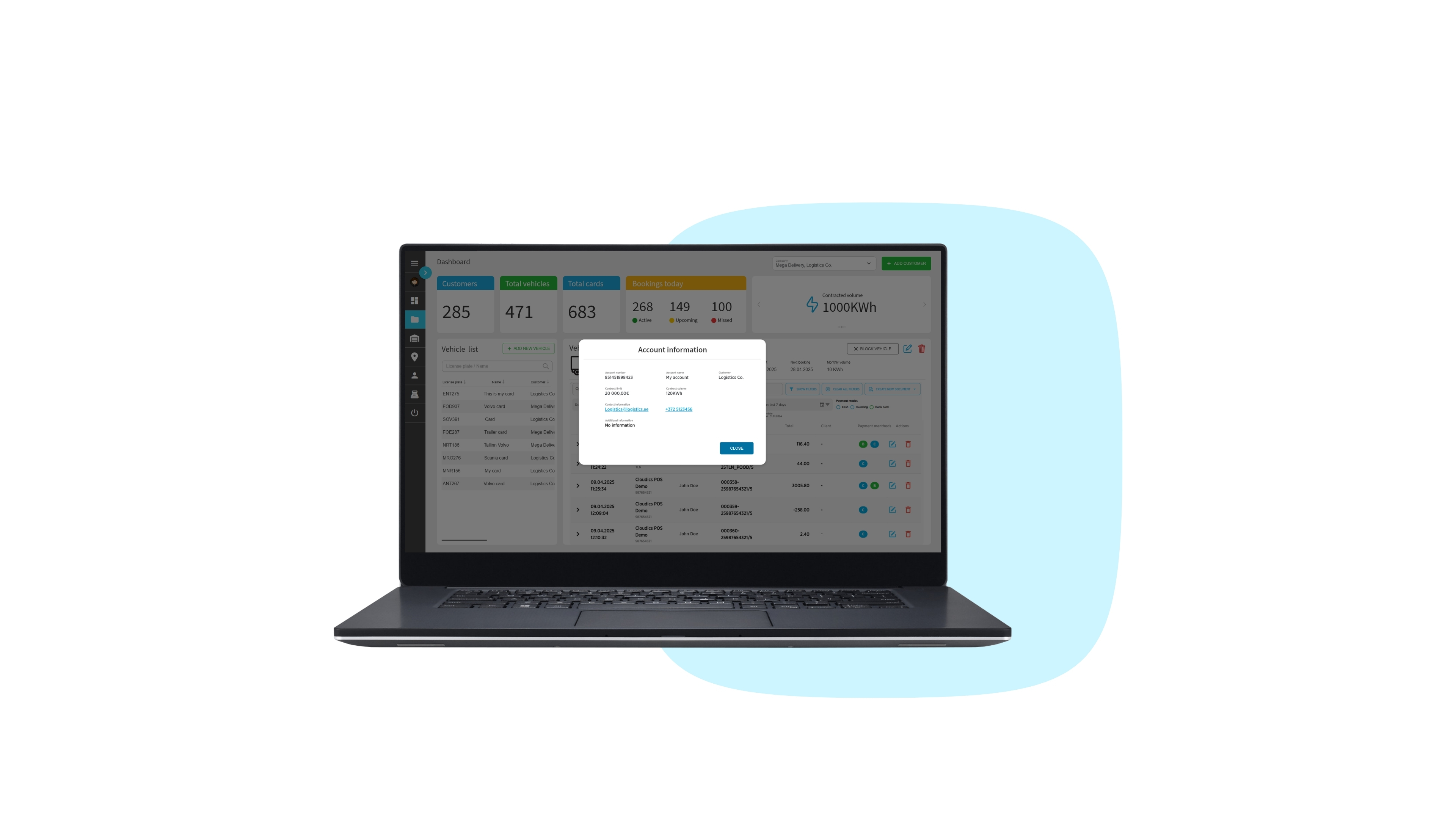
  • 5. Account Info

    Detailed contract overview with customer info and limits

  • 6. Cards

    Fleet card usage stats, bookings, and card details

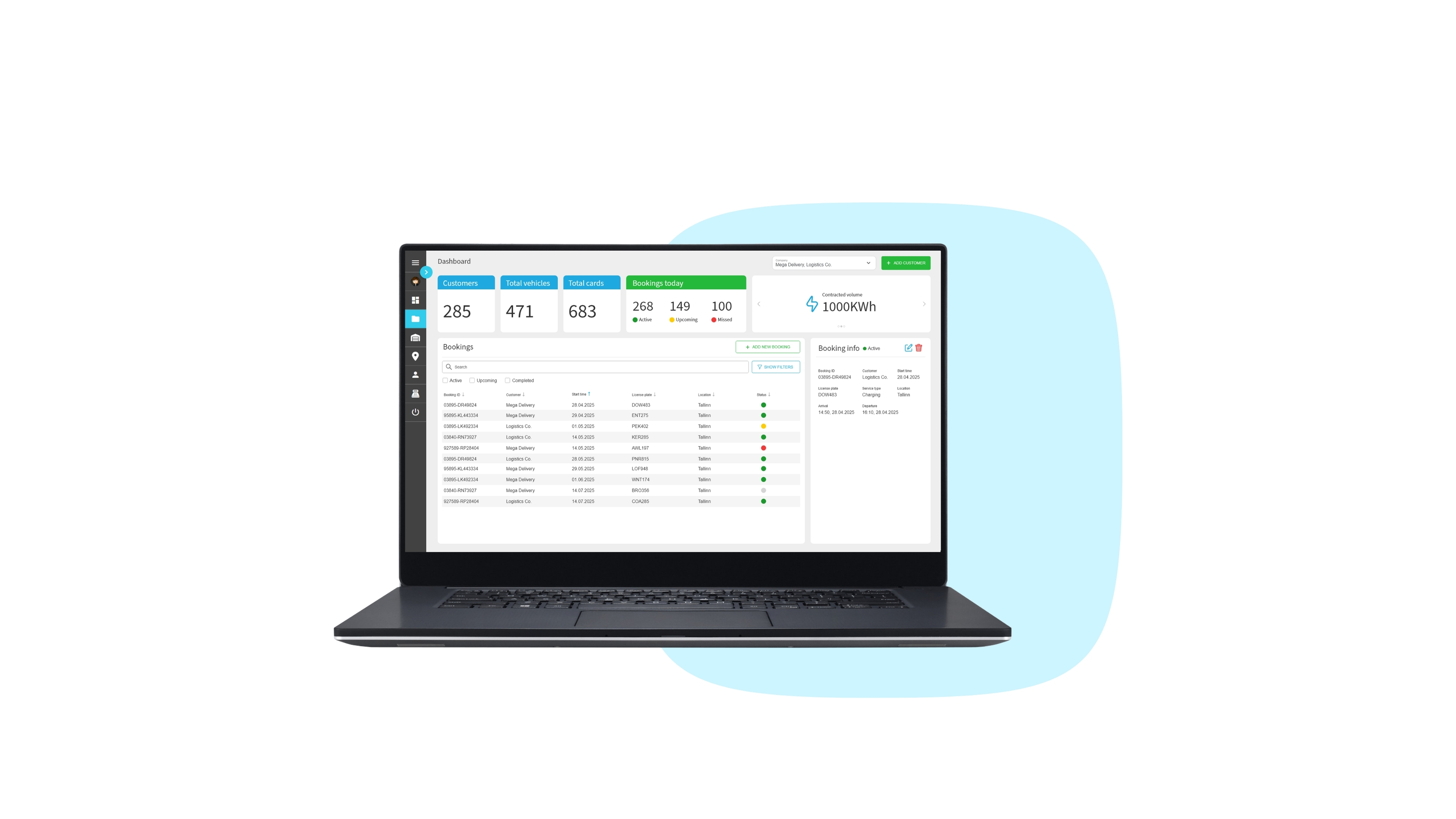
  • 7. Bookings

    Comprehensive bookings overview with real-time statuses

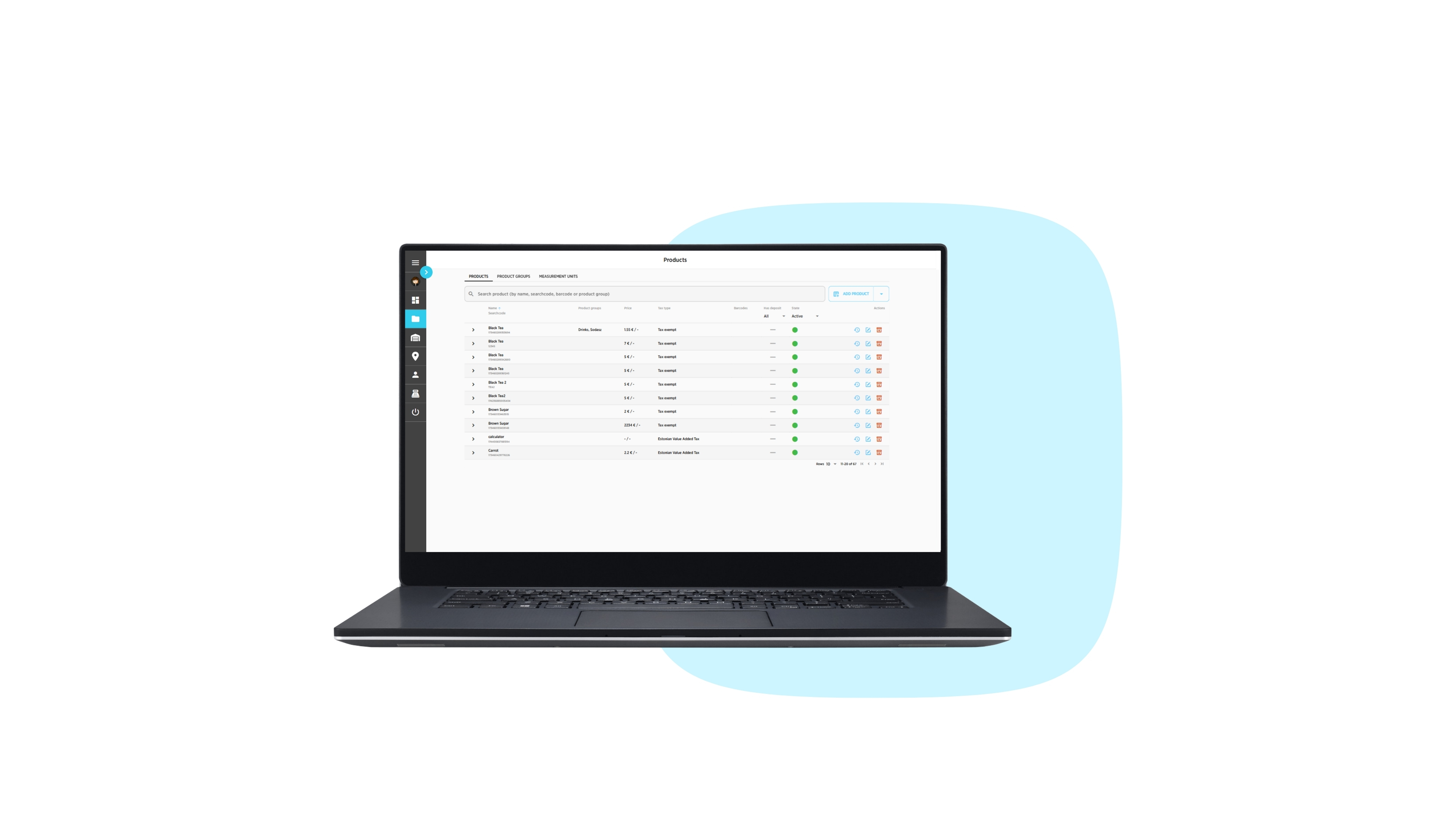
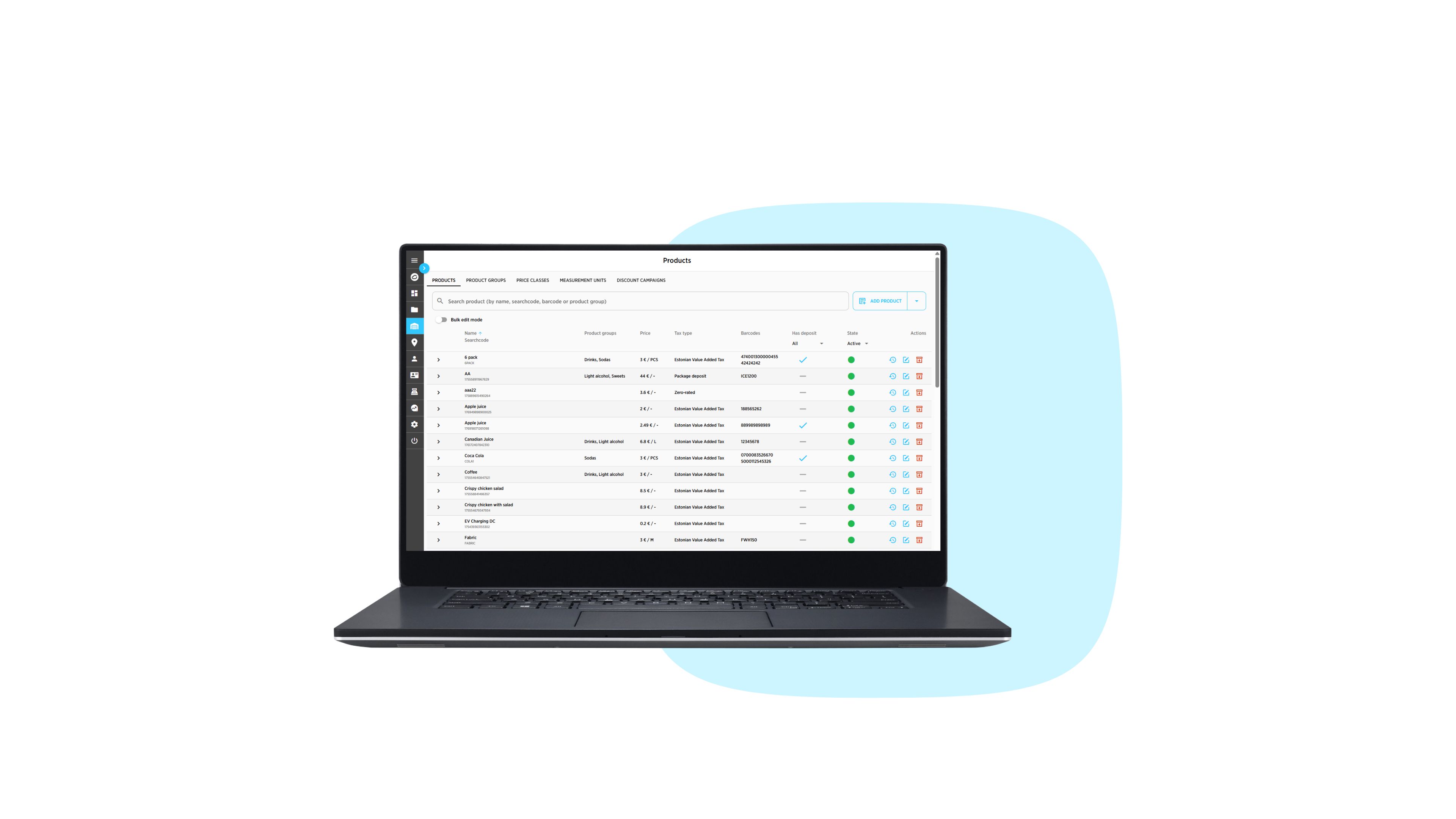
  • 8. Products

    Your product list for easy pricing and overview

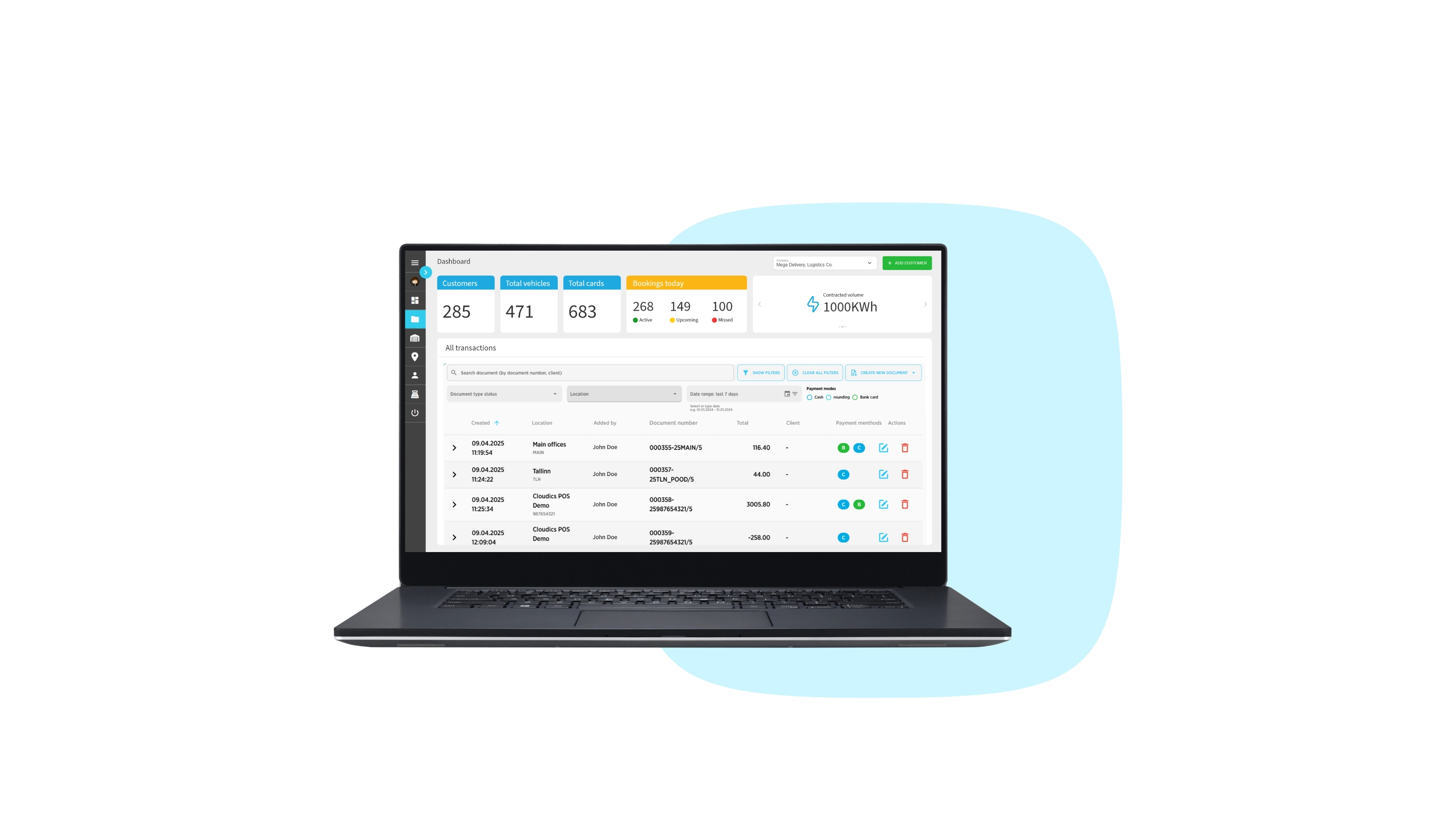
Fleet Manager

  • 1. Dashboard

    Visualised real-time data of your commercial fleet

  • 2. Vehicle List

    Comprehensive overview of your vehicles

  • 3. Add New Vehicle

    Adding vehicles to your list made simple

  • 4. Customer Info

    Detailed customer information for easier account management

  • 5. Account Info

    Detailed contract overview with customer info and limits

  • 6. Cards

    Fleet card usage stats, bookings, and card details

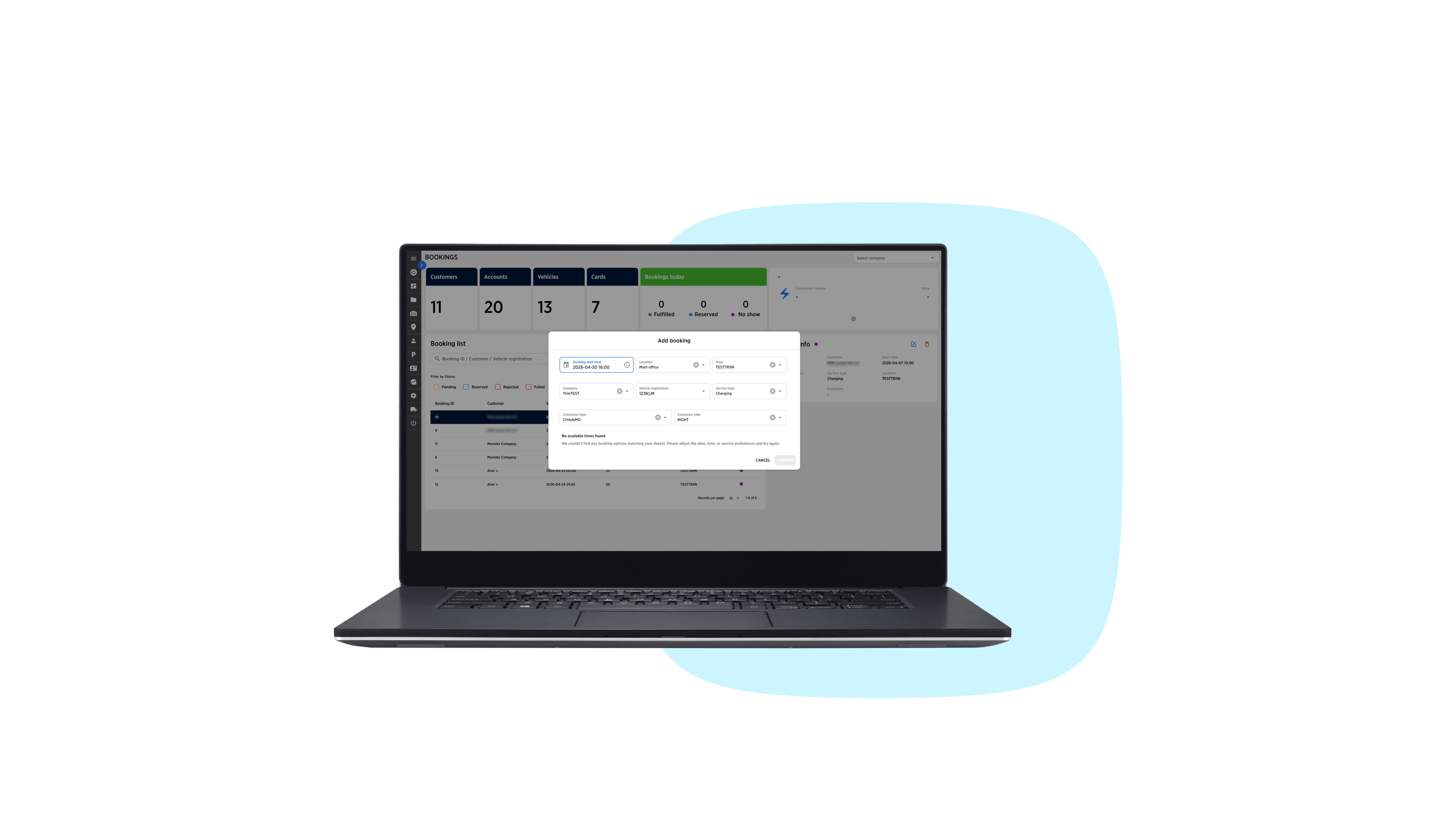
  • 7. Bookings

    Comprehensive bookings overview with real-time statuses

  • 8. Products

    Your product list for easy pricing and overview

Fleet Manager

  • 1. Dashboard

    Visualised real-time data of your commercial fleet

  • 2. Vehicle List

    Comprehensive overview of your vehicles

  • 3. Add New Vehicle

    Adding vehicles to your list made simple

  • 4. Customer Info

    Detailed customer information for easier account management

  • 5. Account Info

    Detailed contract overview with customer info and limits

  • 6. Cards

    Fleet card usage stats, bookings, and card details

  • 7. Bookings

    Comprehensive bookings overview with real-time statuses

  • 8. Products

    Your product list for easy pricing and overview

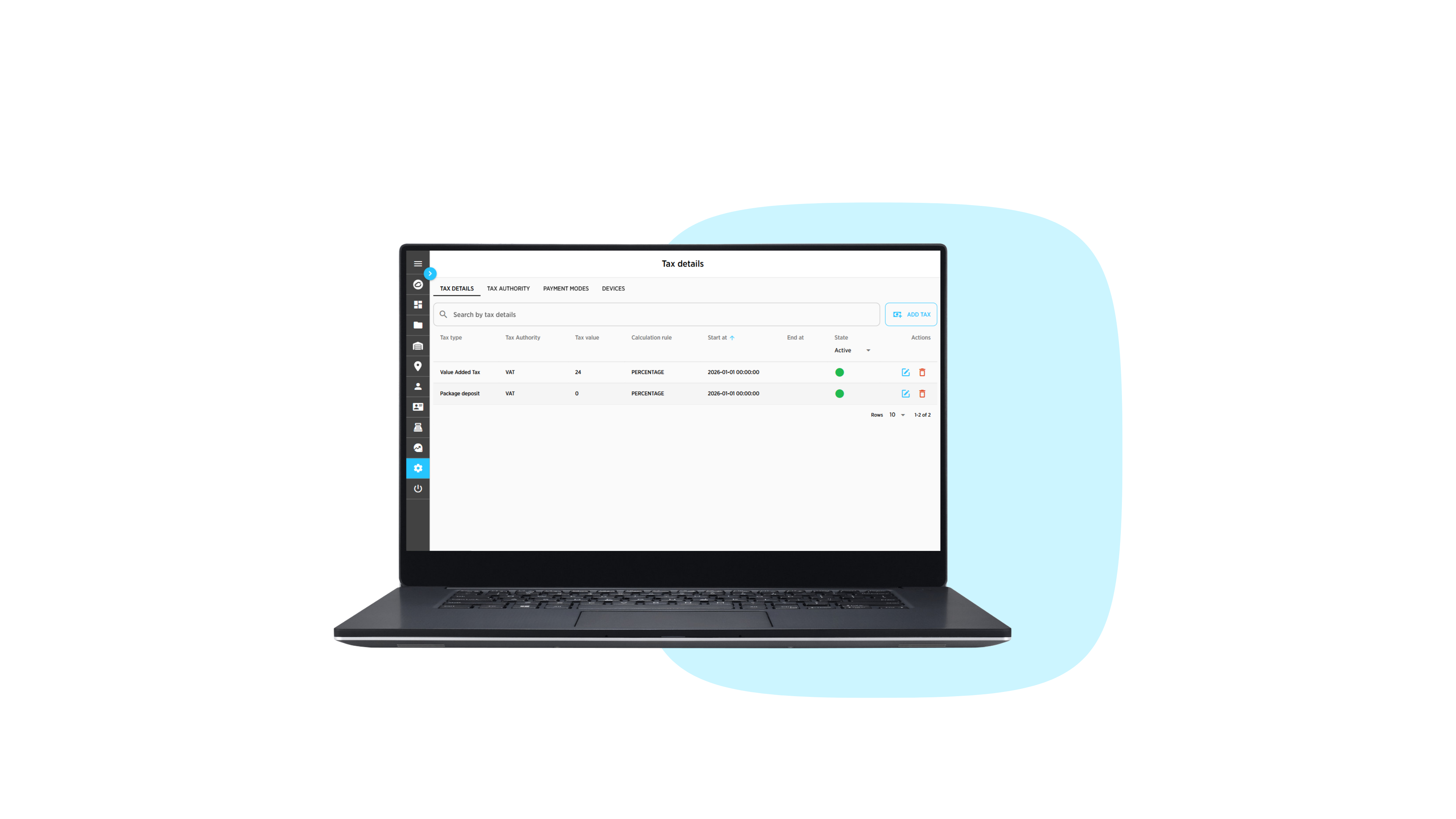
BO Fuelling

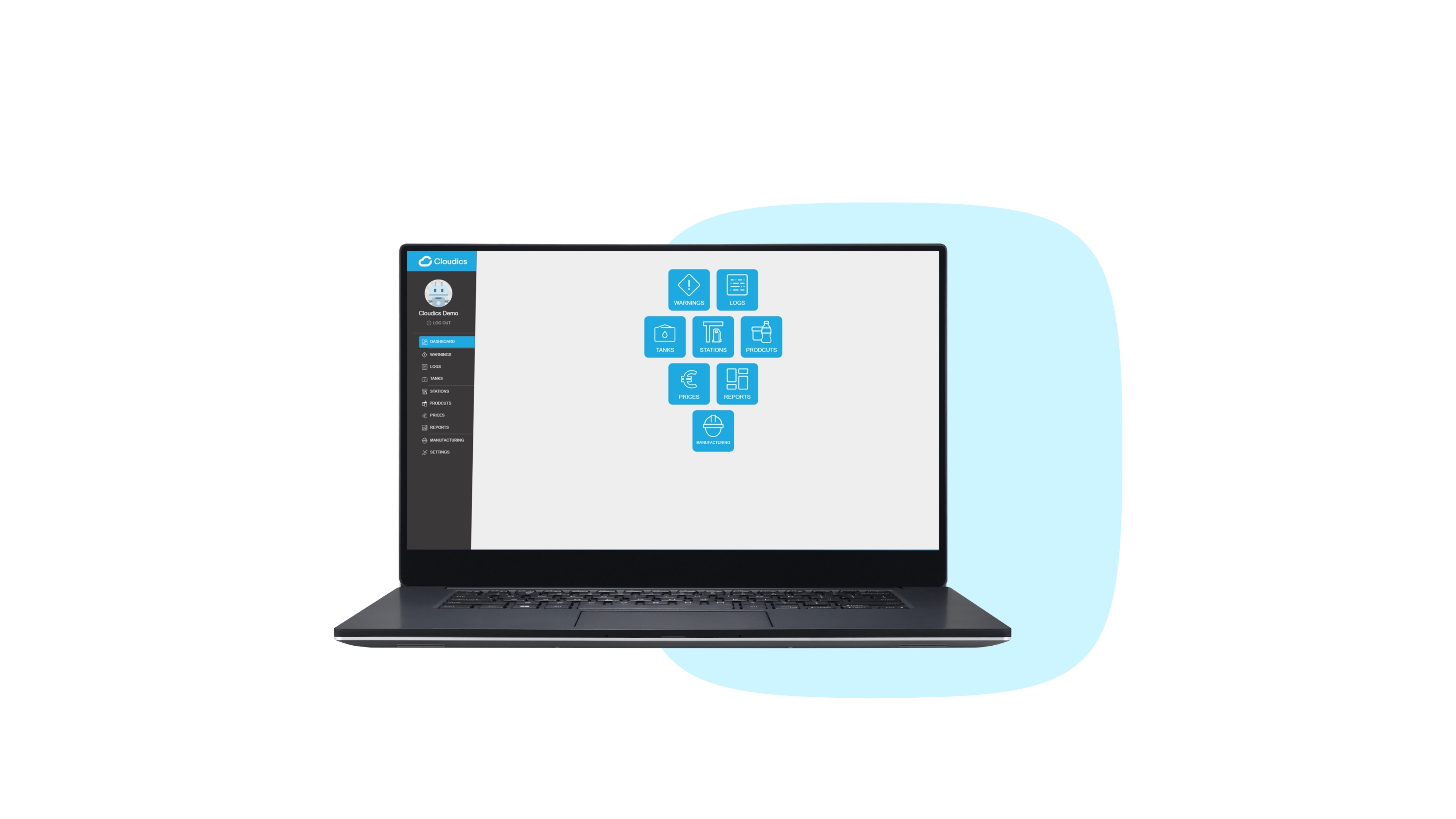
  • 1. Dashboard

    Access the modules quickly from the dashboard
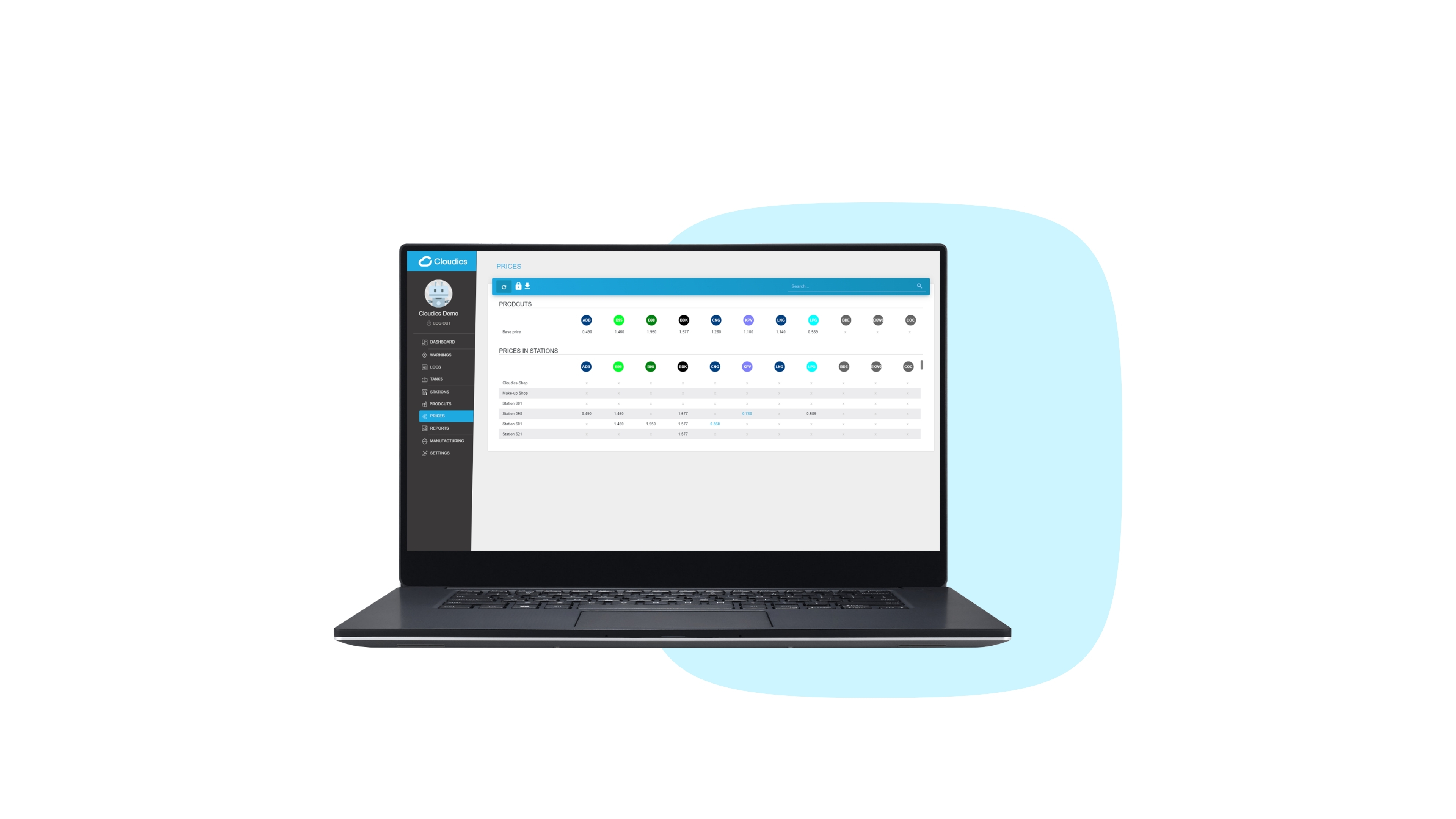
  • 2. Prices

    Change the prices in any or all of your stations
  • 3. Logs

    View logs of the transactions in each station

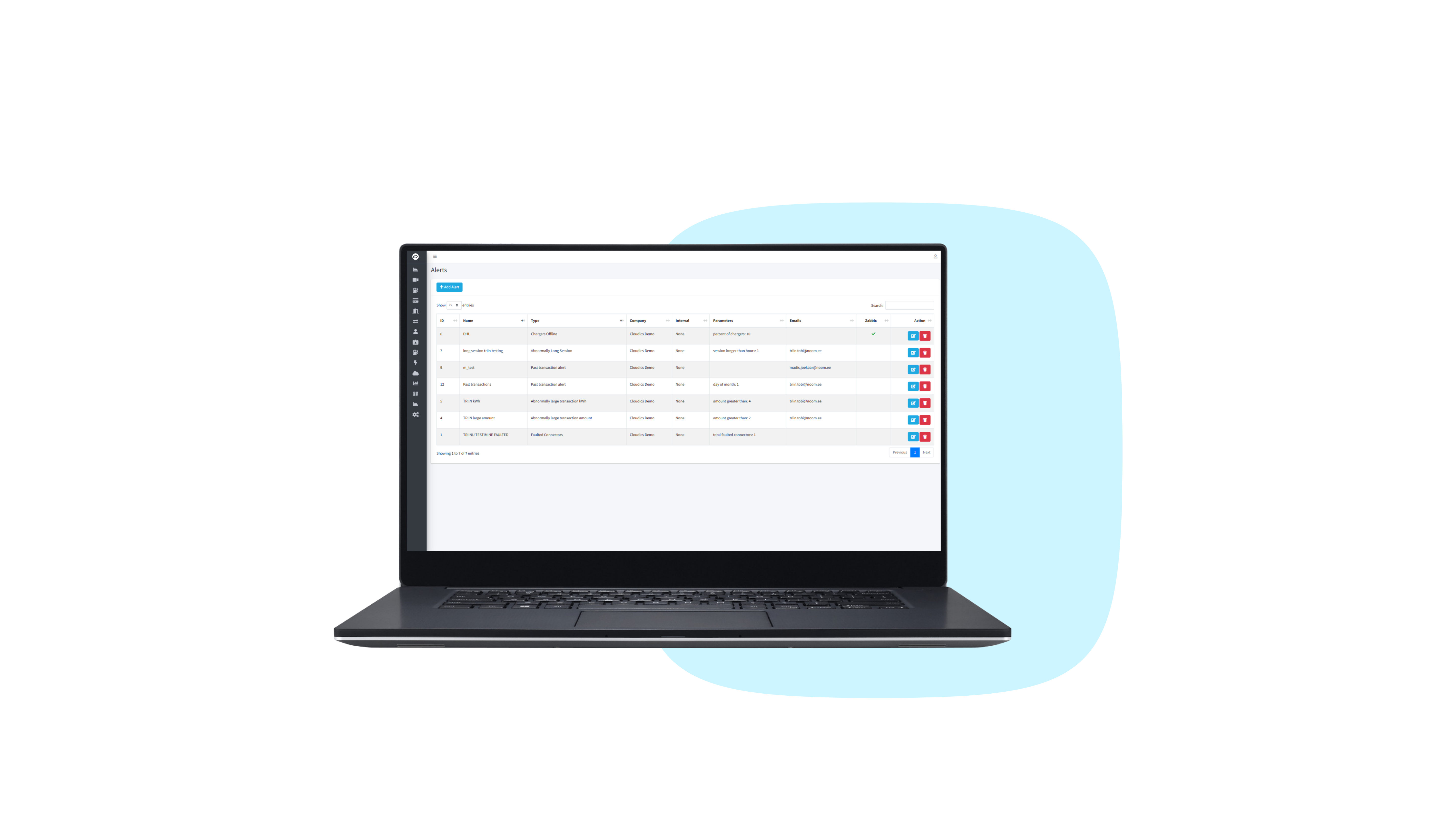
  • 4. Warnings

    Real-time monitoring and alerts

  • 5. Reports

    Create and view customisable reports

  • 6. Wetstock

    Detailed overview of fuel levels in real time

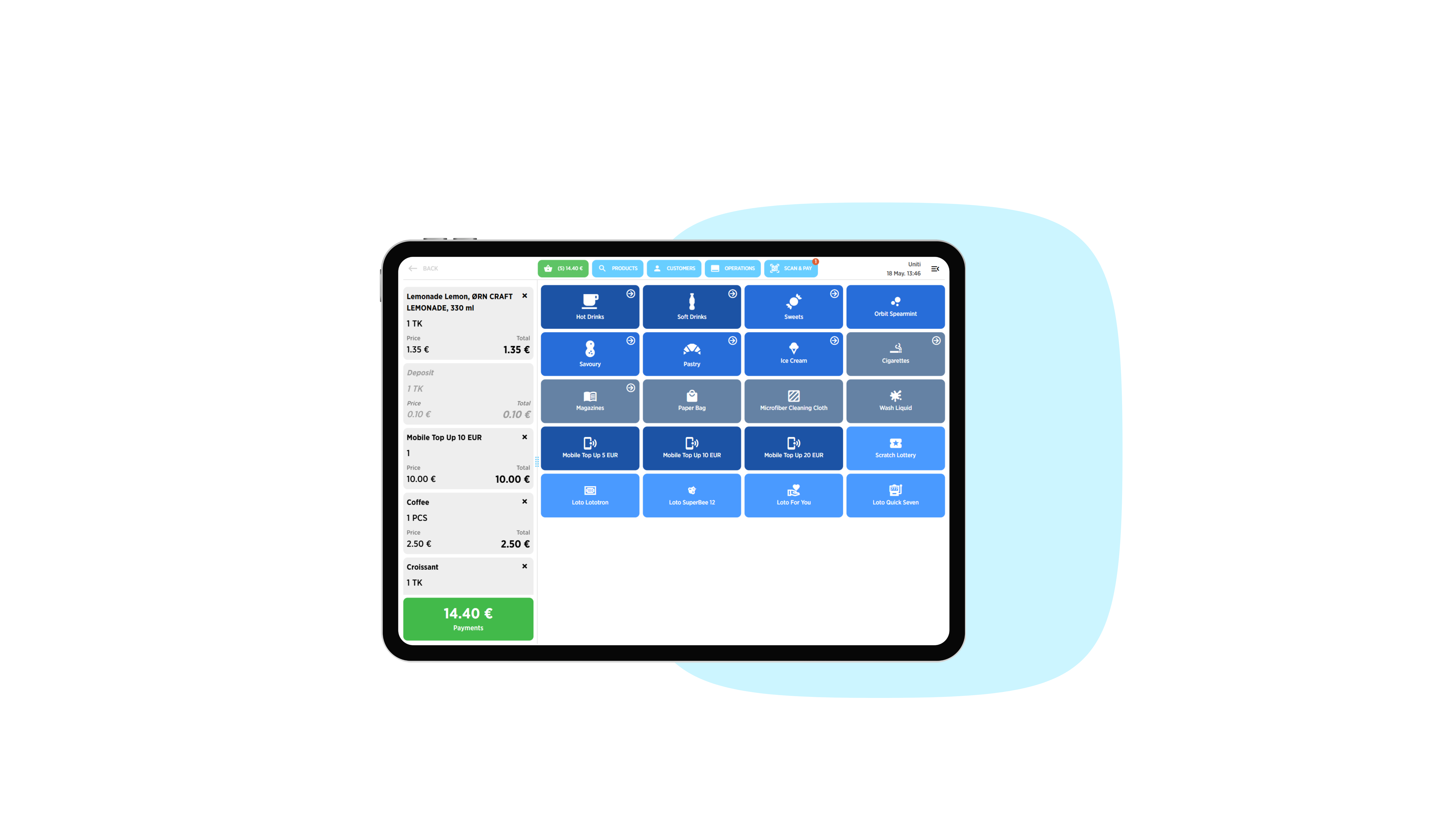
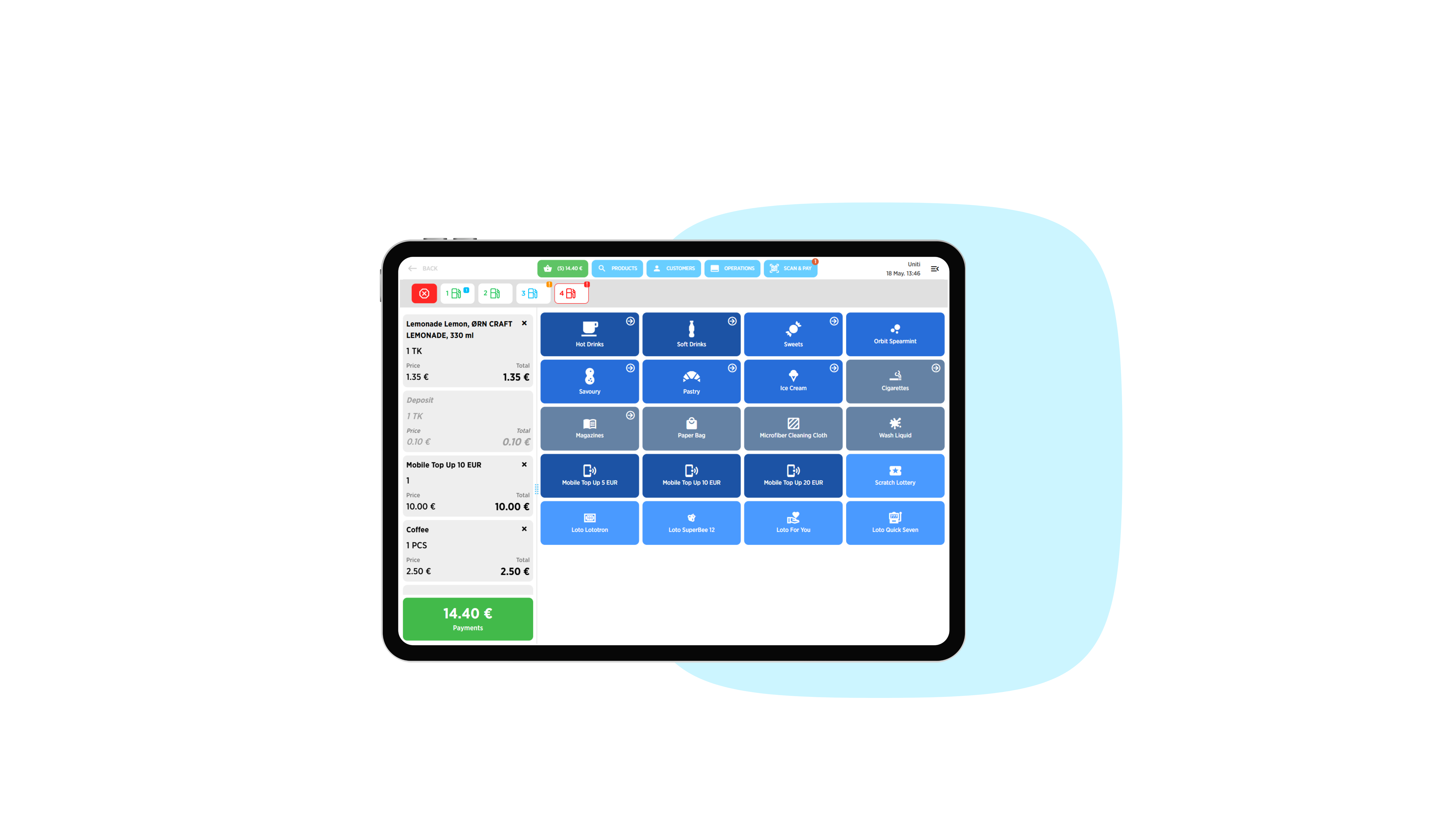
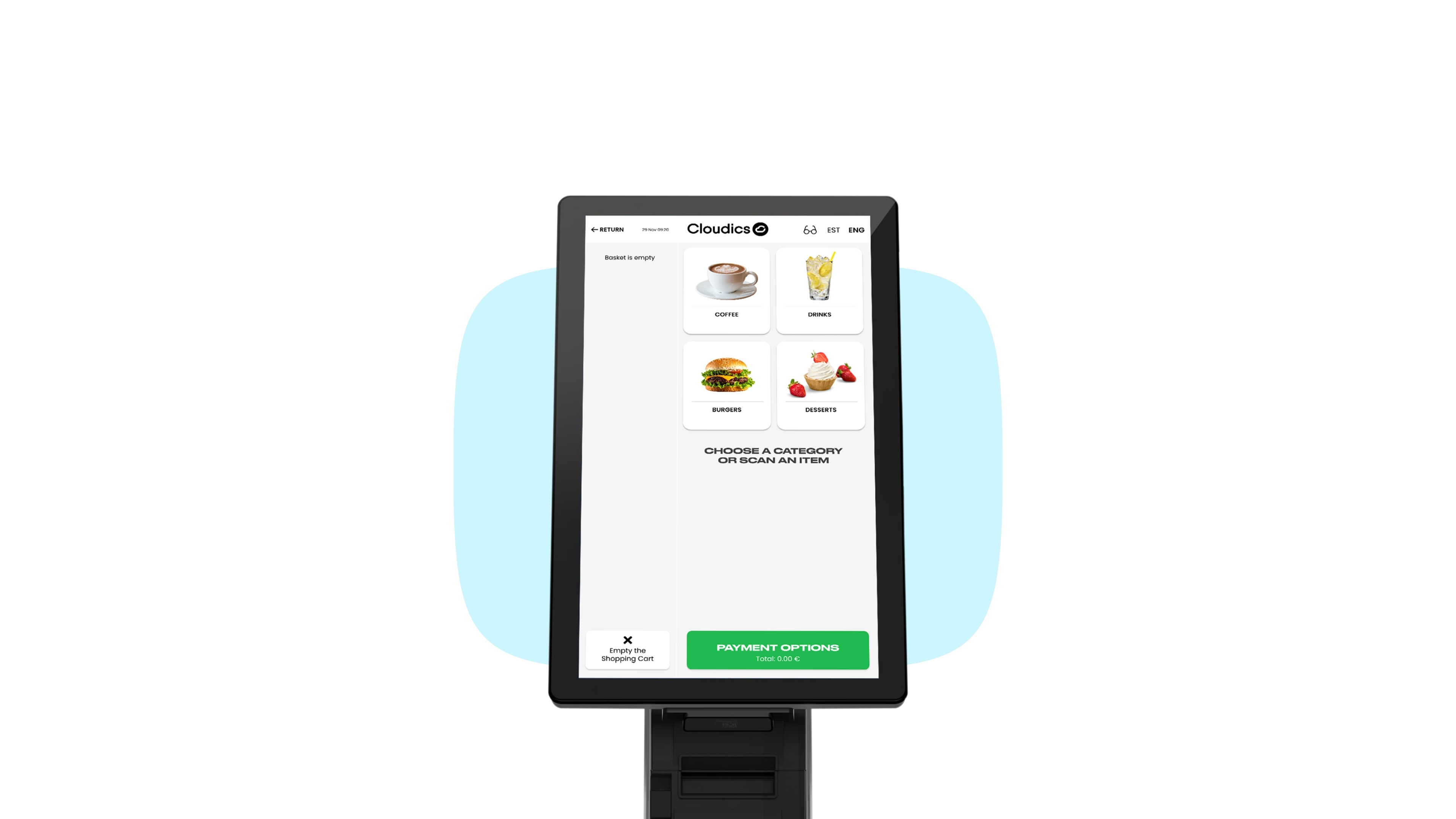
SCO

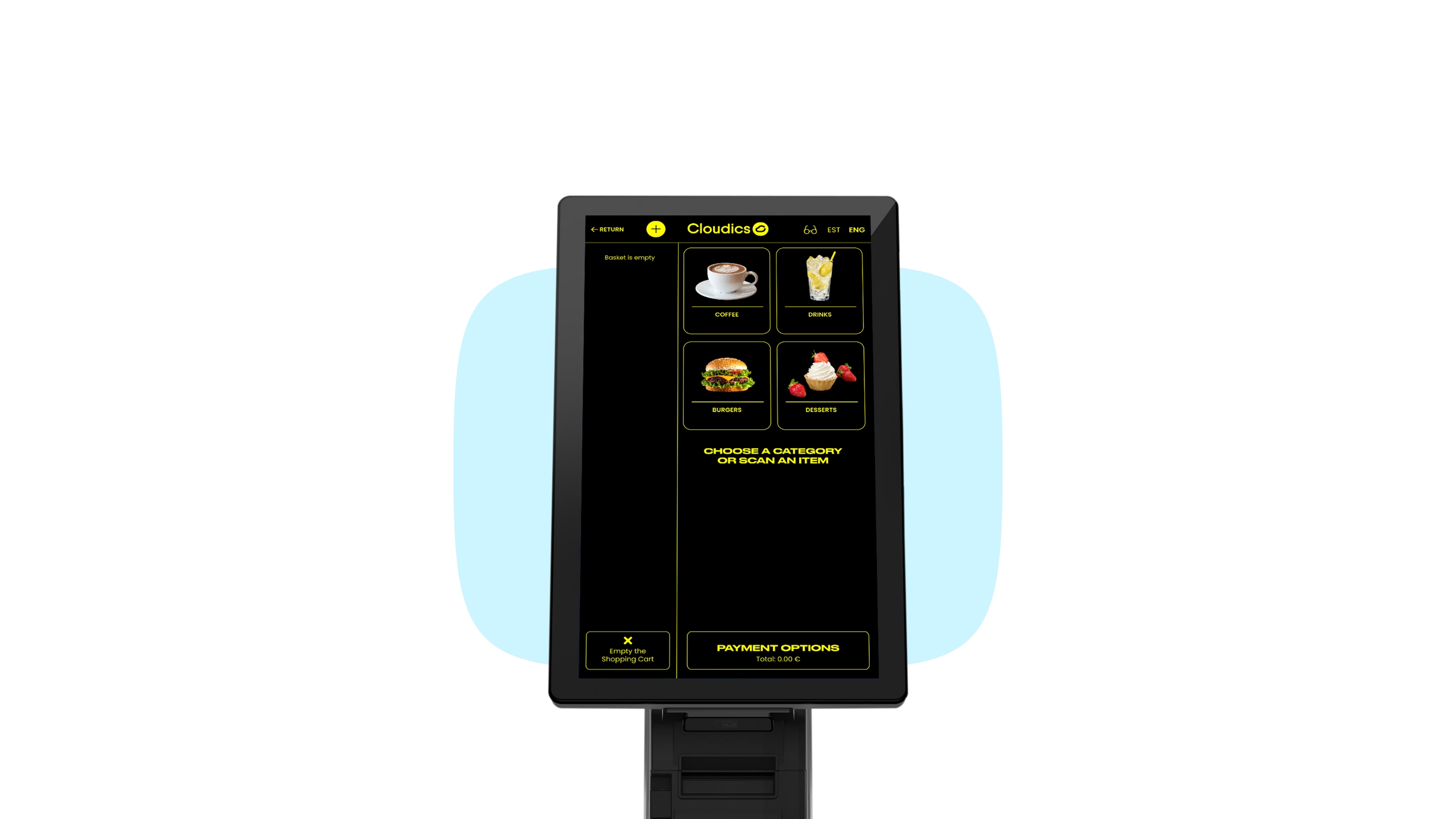
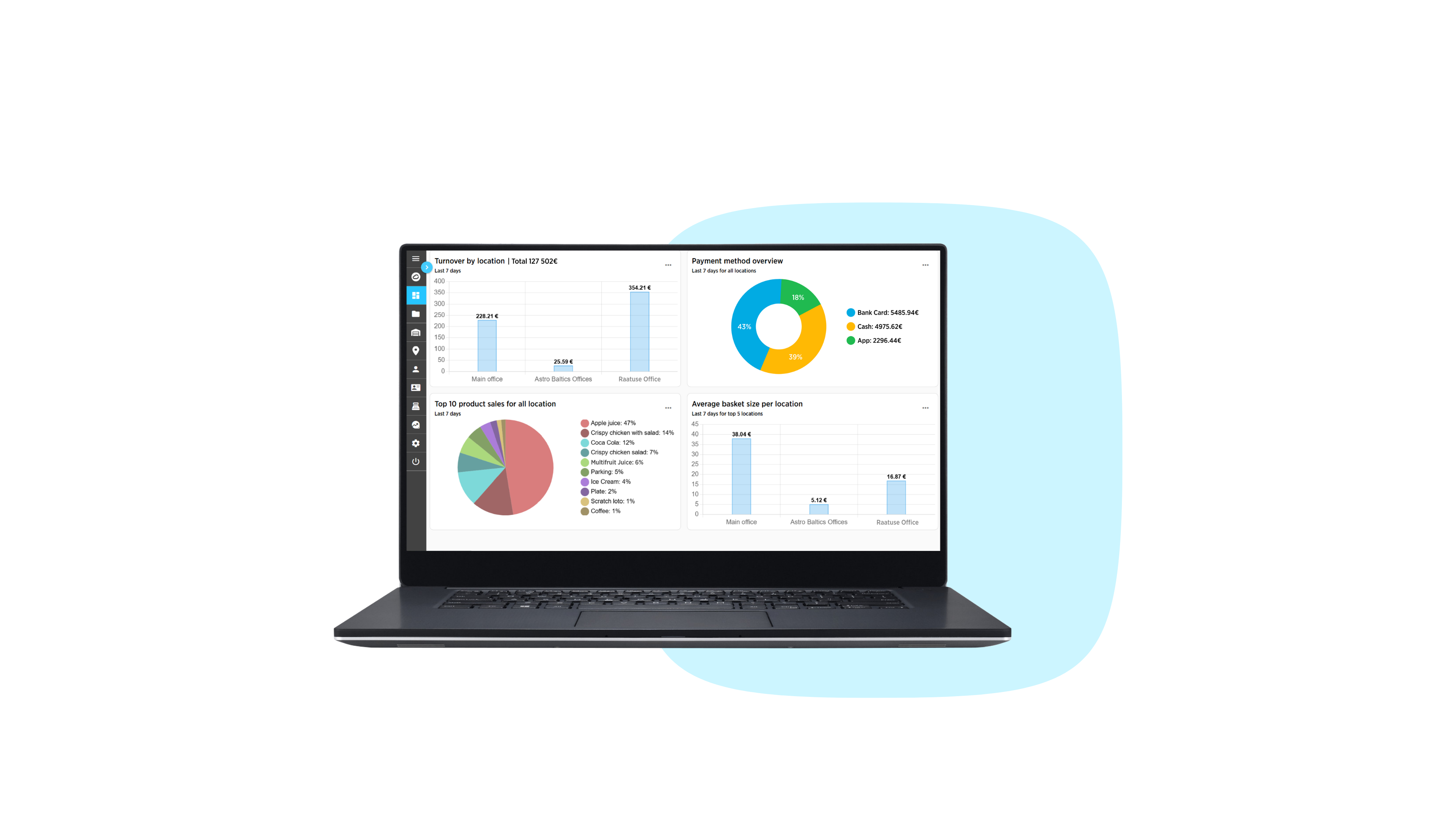
  • 1. Dashboard

    Choose a product category or scan an item
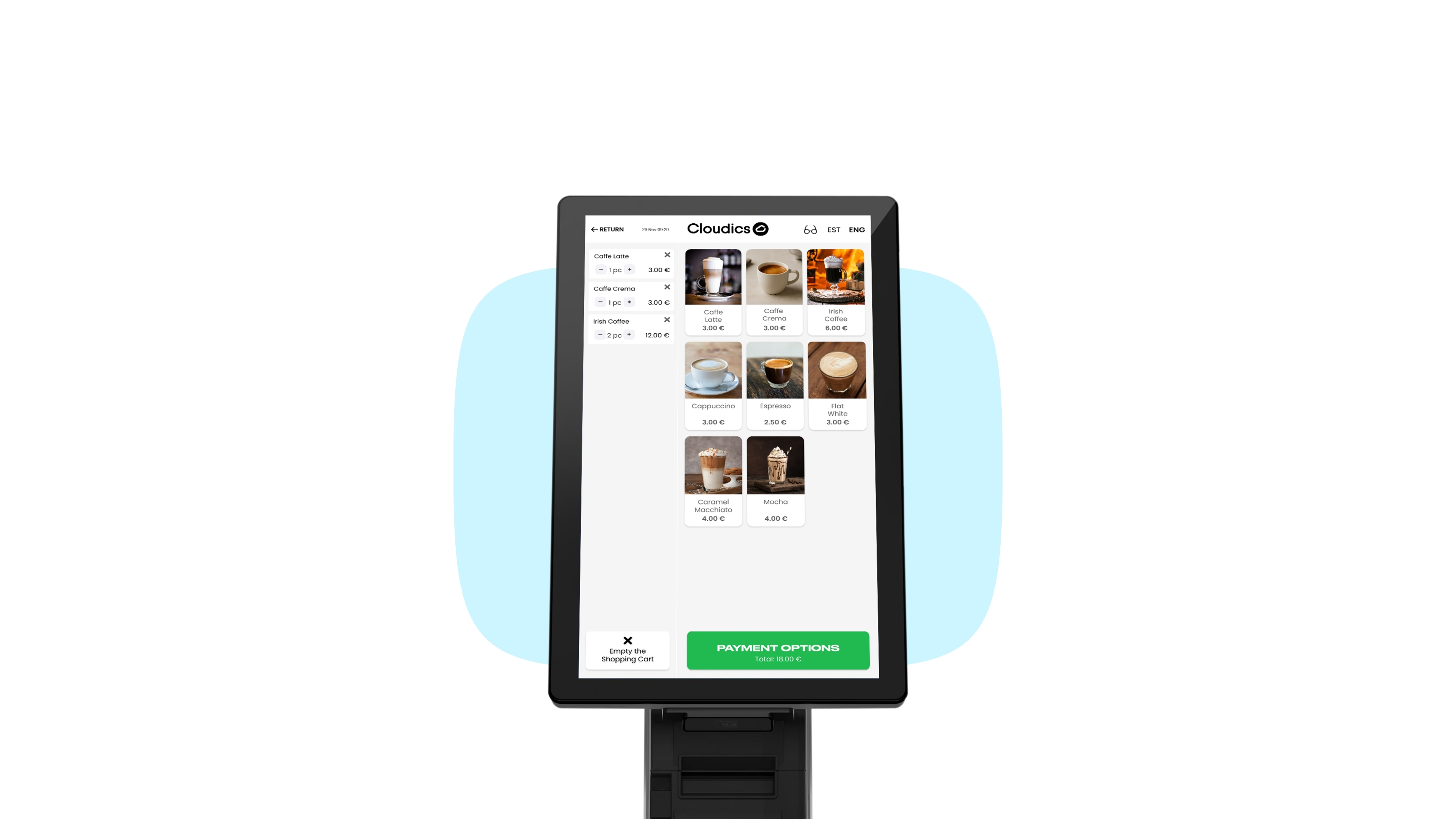
  • 2. Products

    Add products to the cart

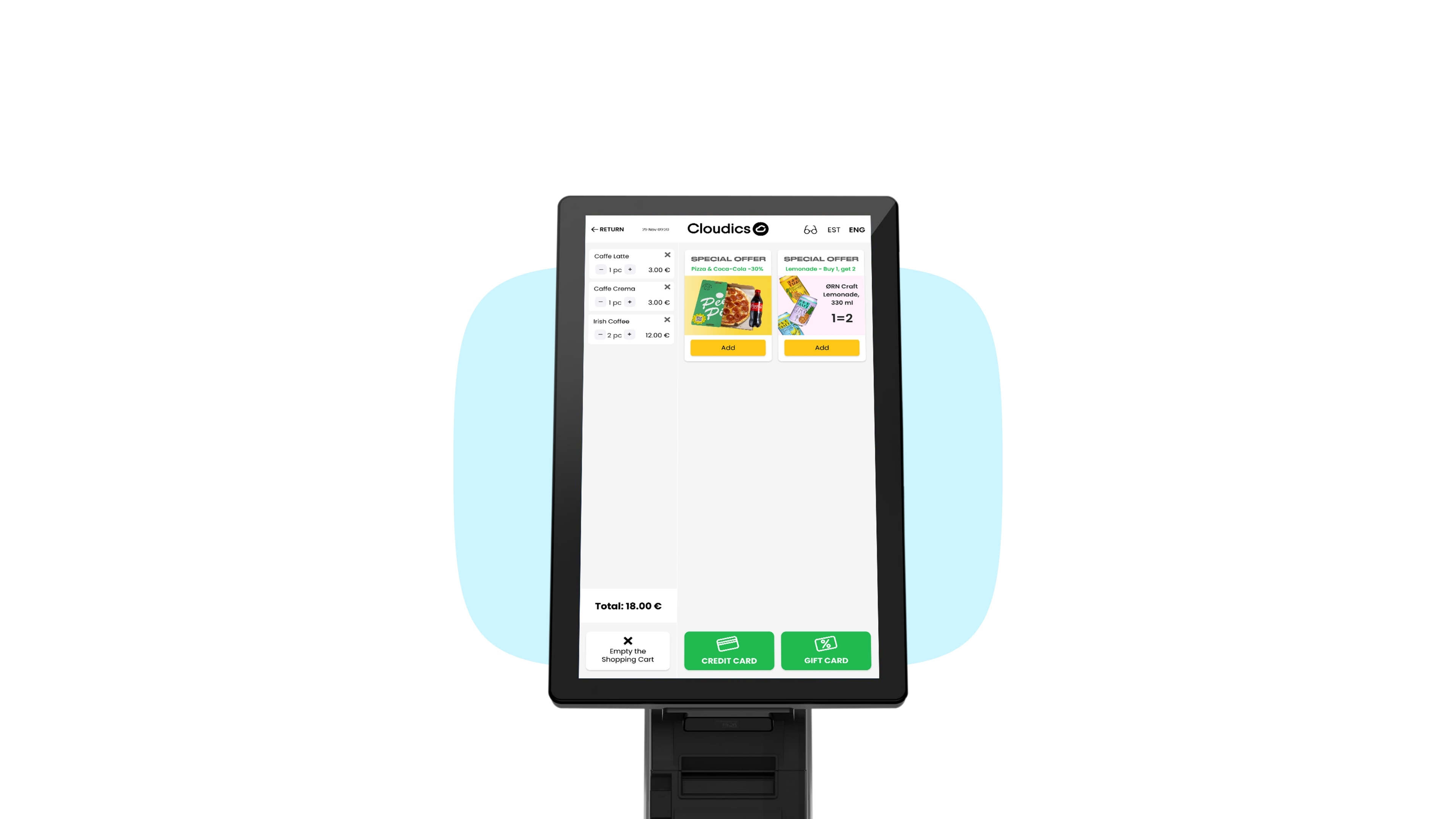
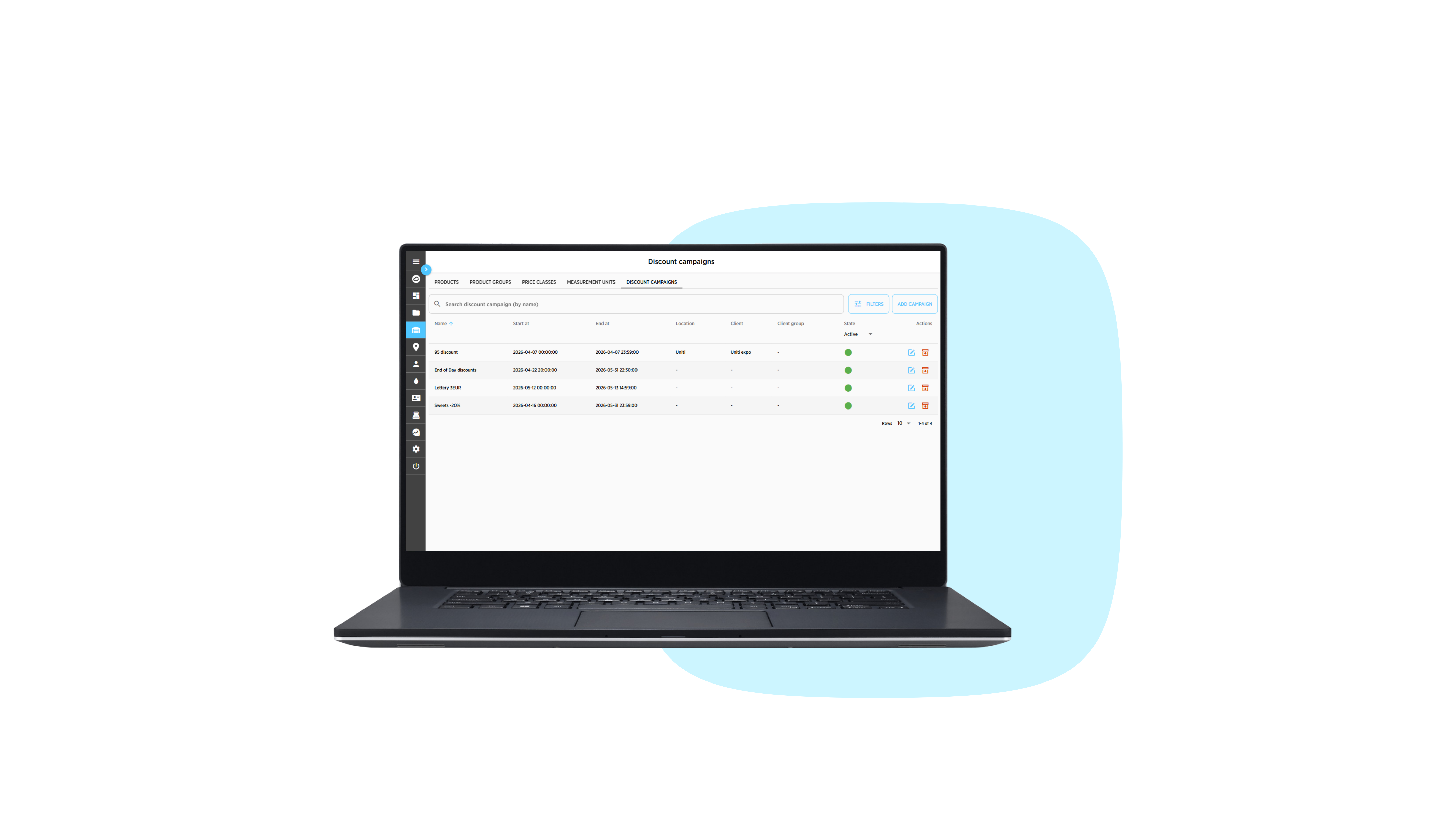
  • 3. Special Offers

    Add special deals to your cart

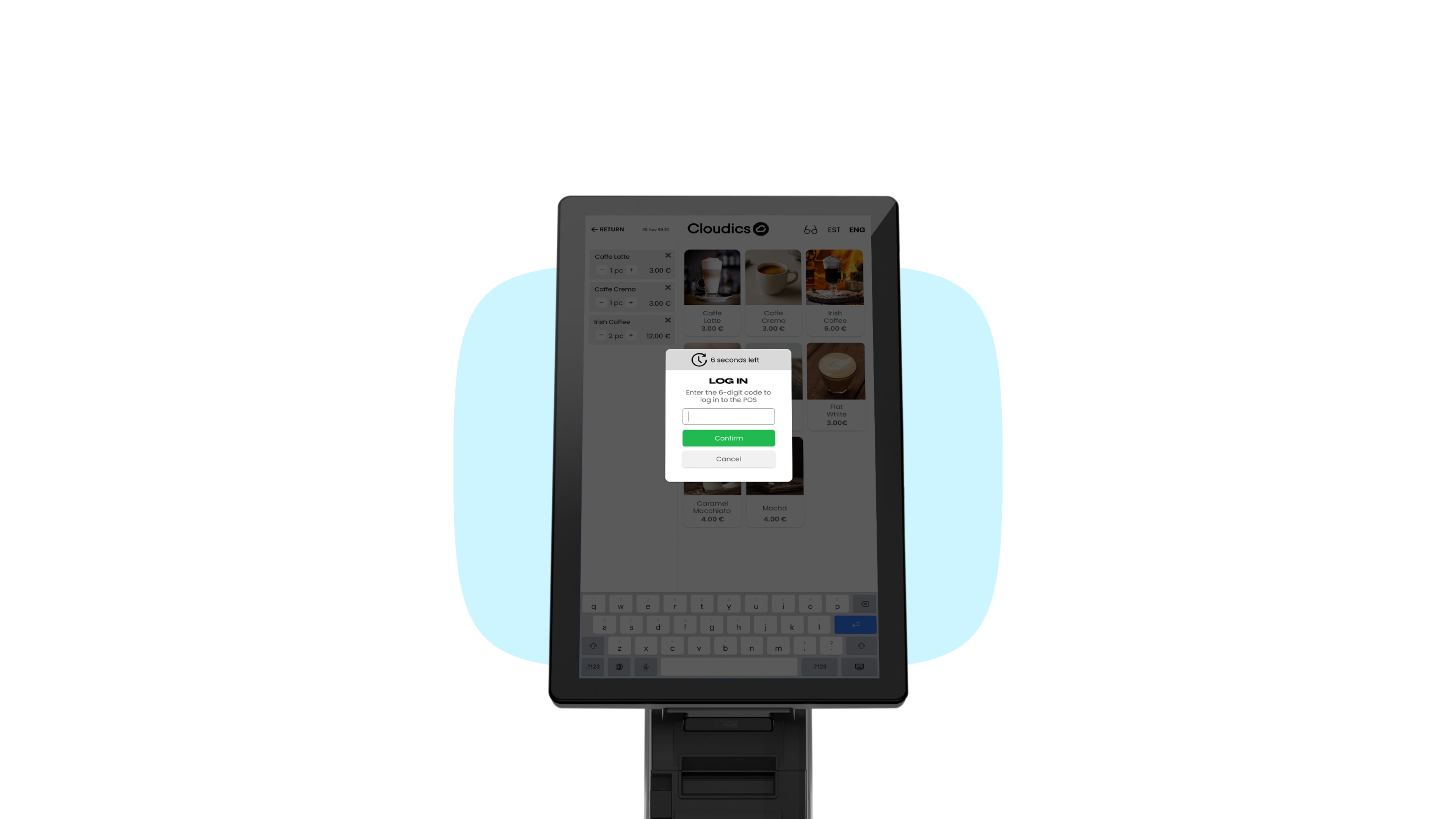
  • 4. POS Mode

    Cashier can assist and take over the checkout

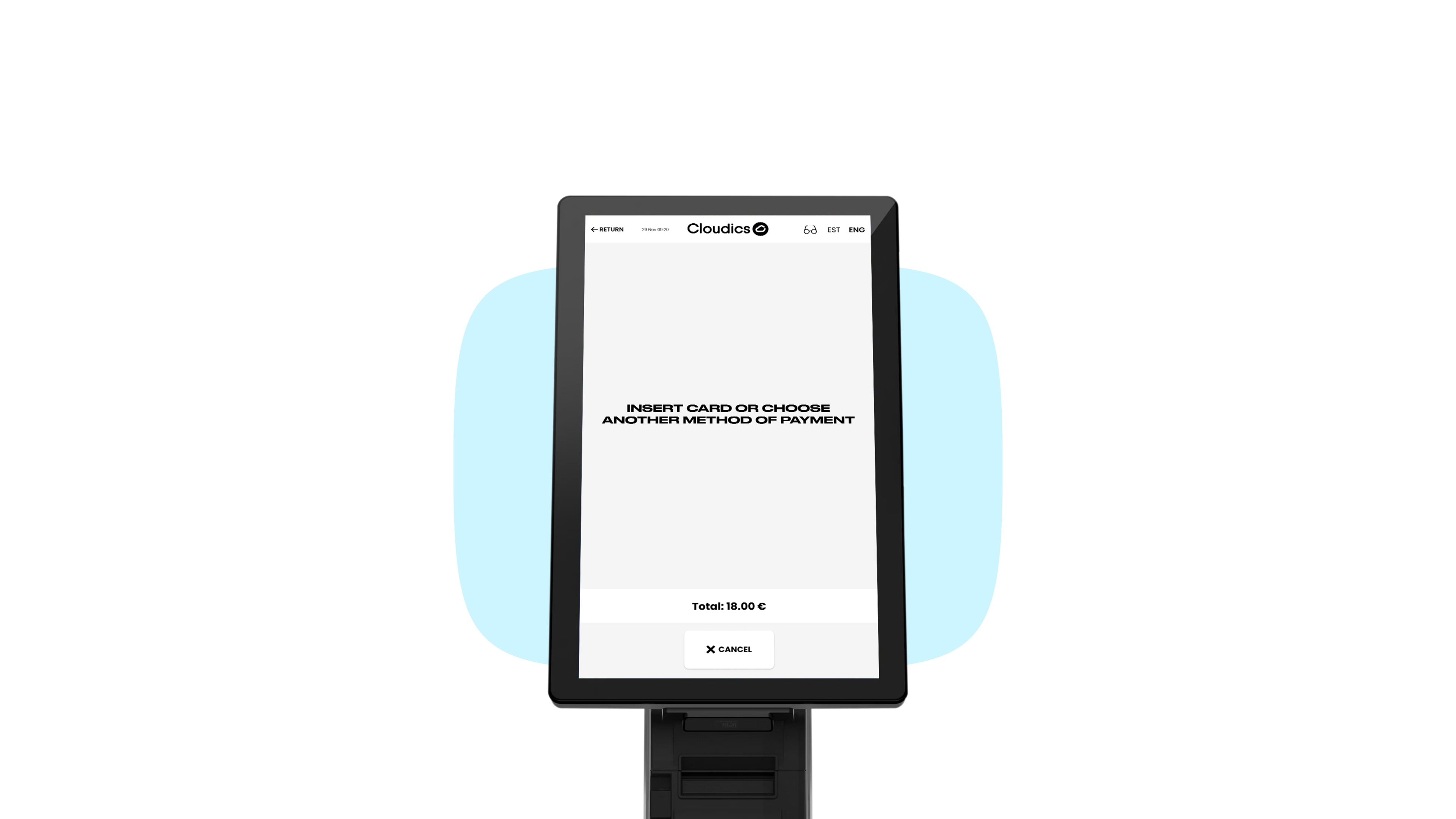
  • 5. Payment

    Pay by card or select another payment method

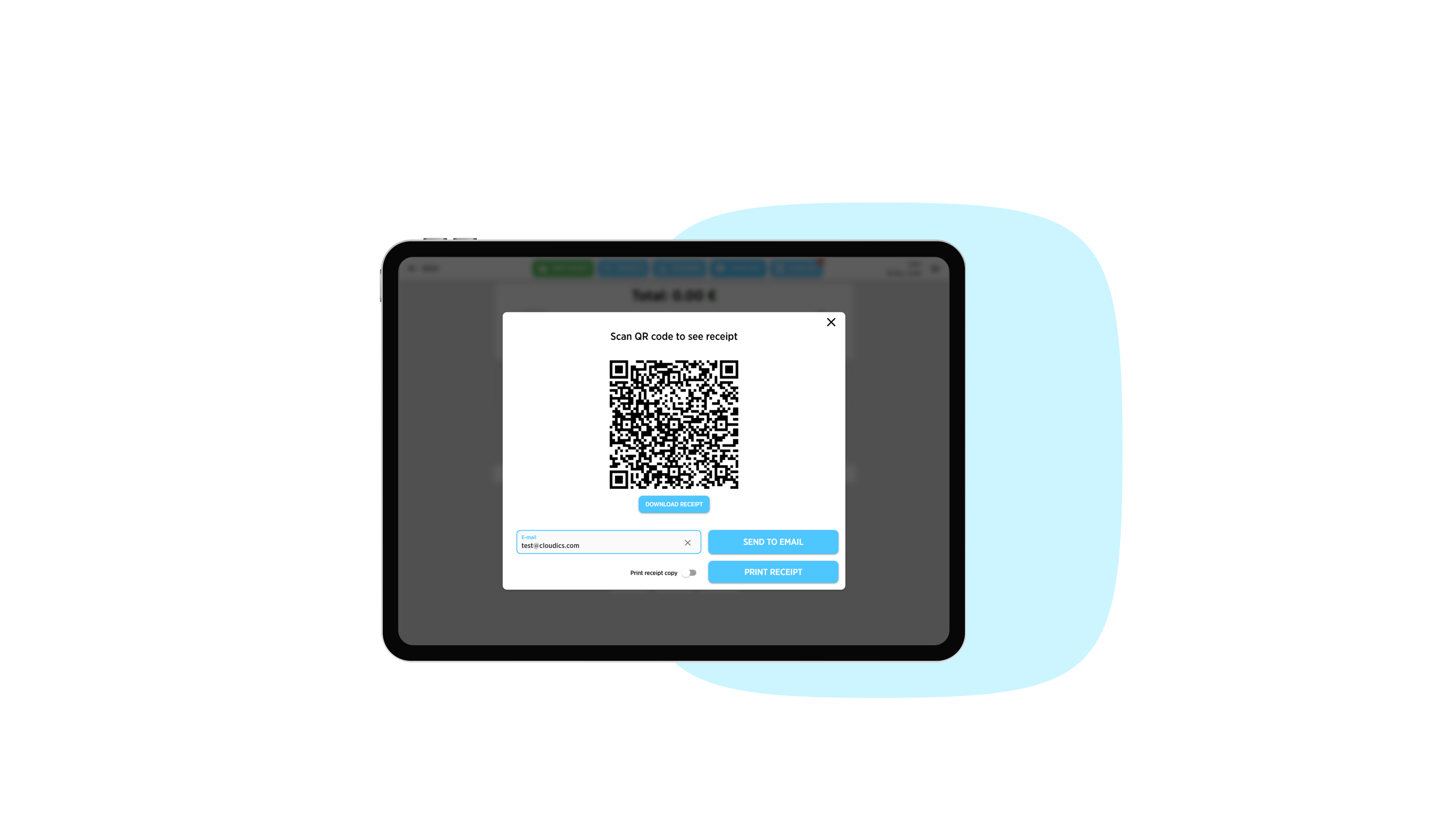
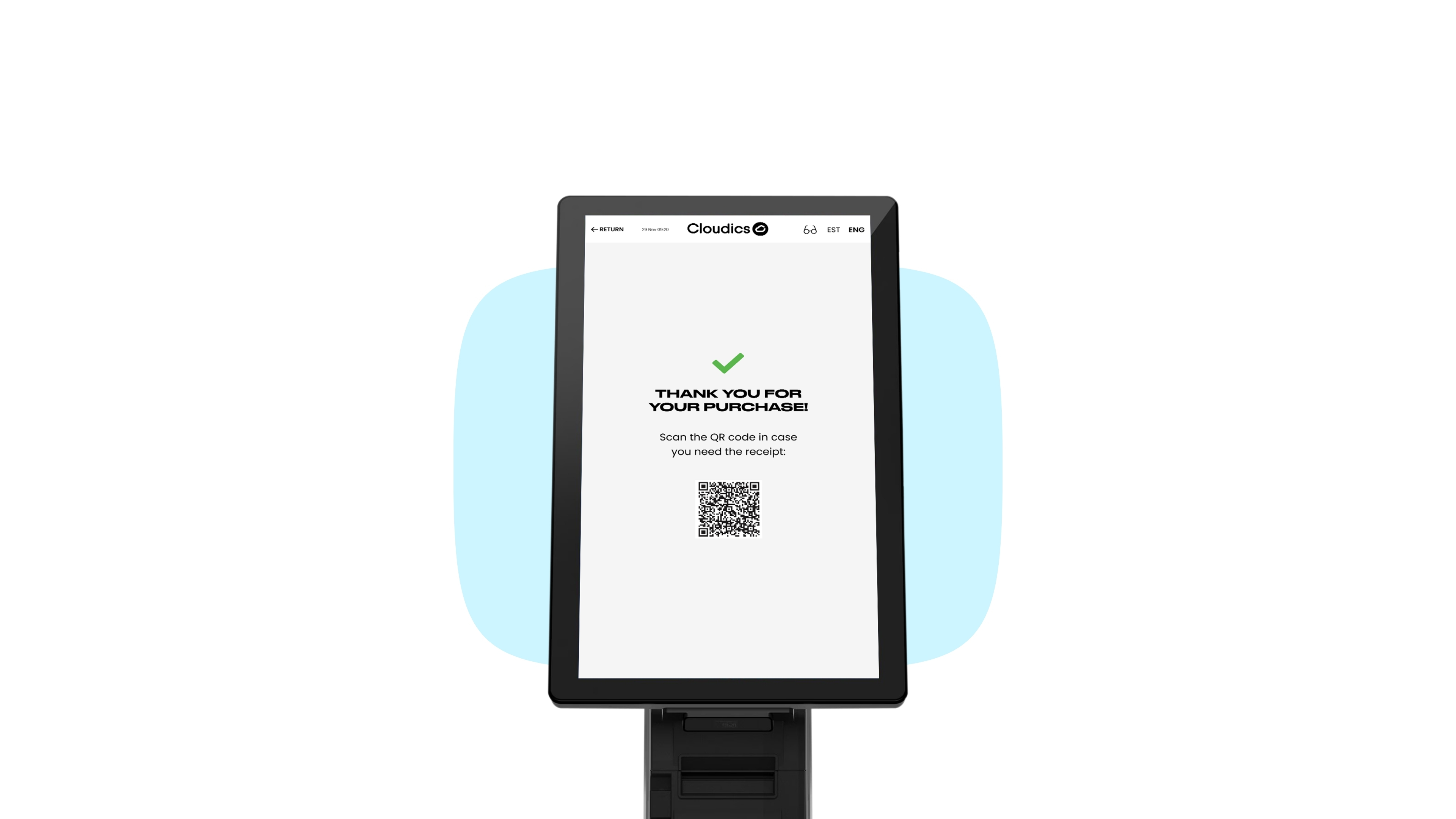
  • 6. Receipt

    Scan the QR for a virtual receipt

  • 7. Accessibility

    High contrast mode for people with low vision

FuellingChargingScan & PayPre-orderEntrance

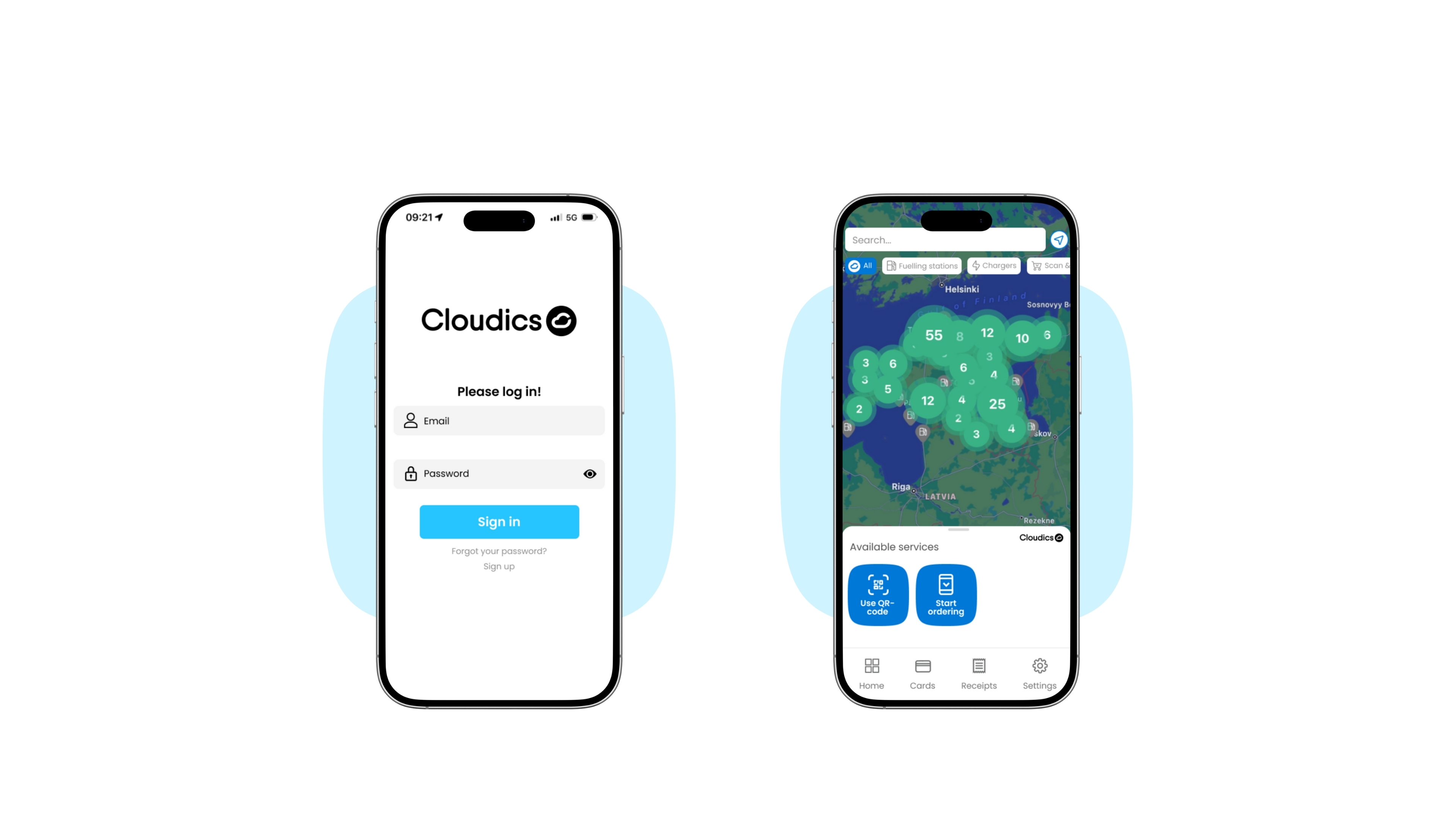
  • Cloudics mobile fuelling

    1. Open

    Open Cloudics App

    2. Location

    Use license plate vertification, GPS or Scan a QR code

     
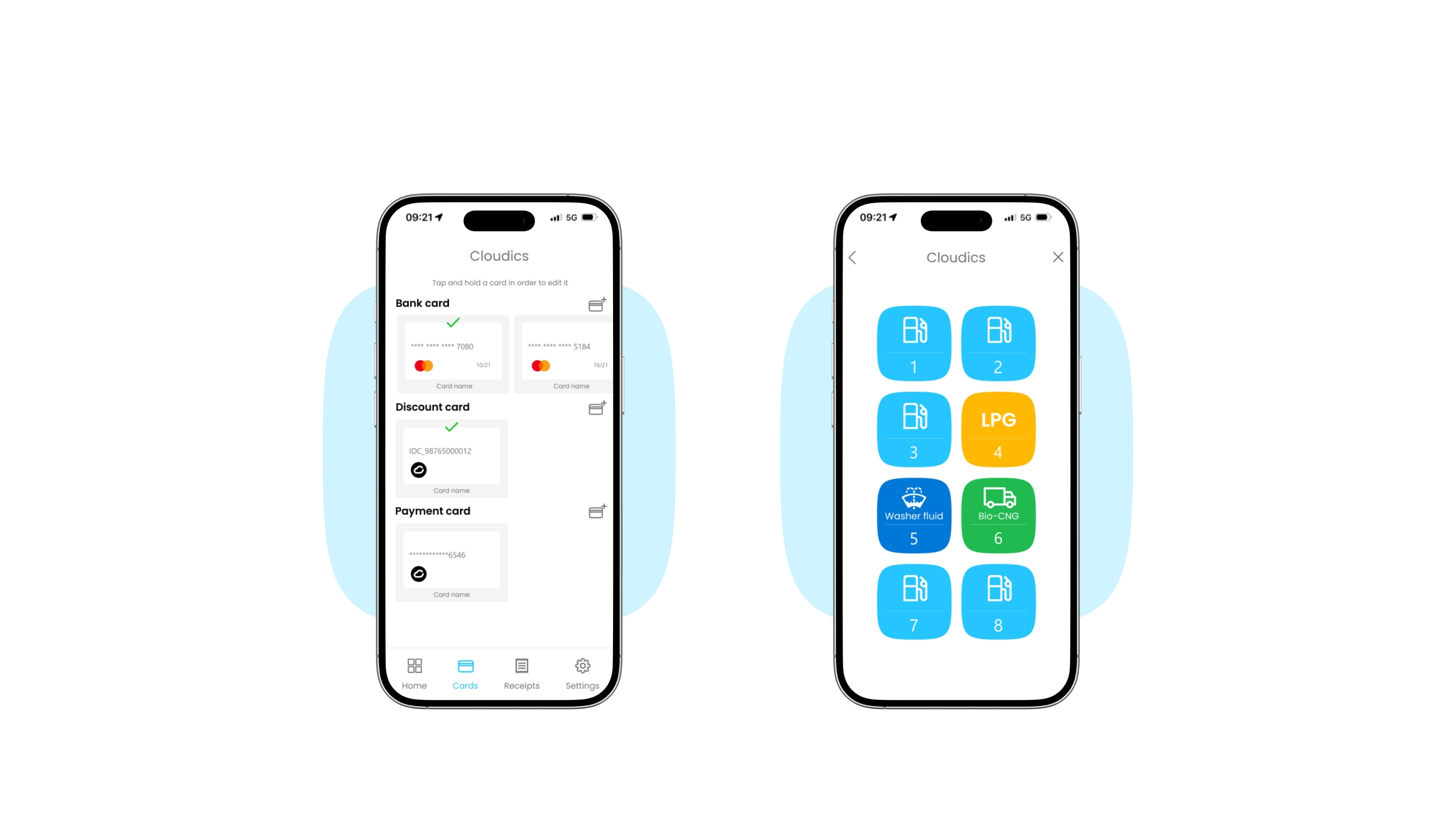
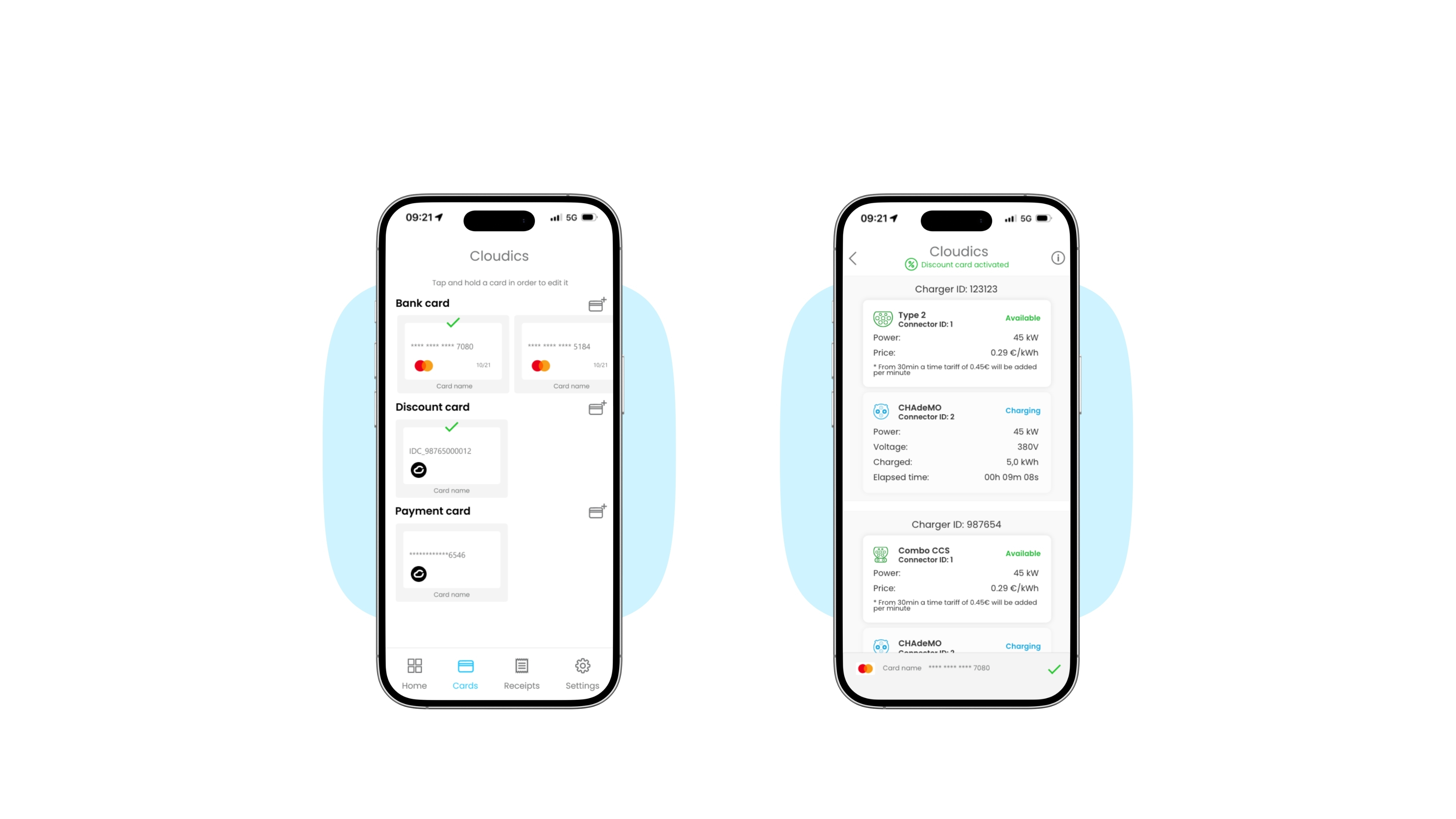
  • 3. Payment

    Choose a payment method (various cards can be added)

    4. Dispenser

    Choose dispenser (pump number)

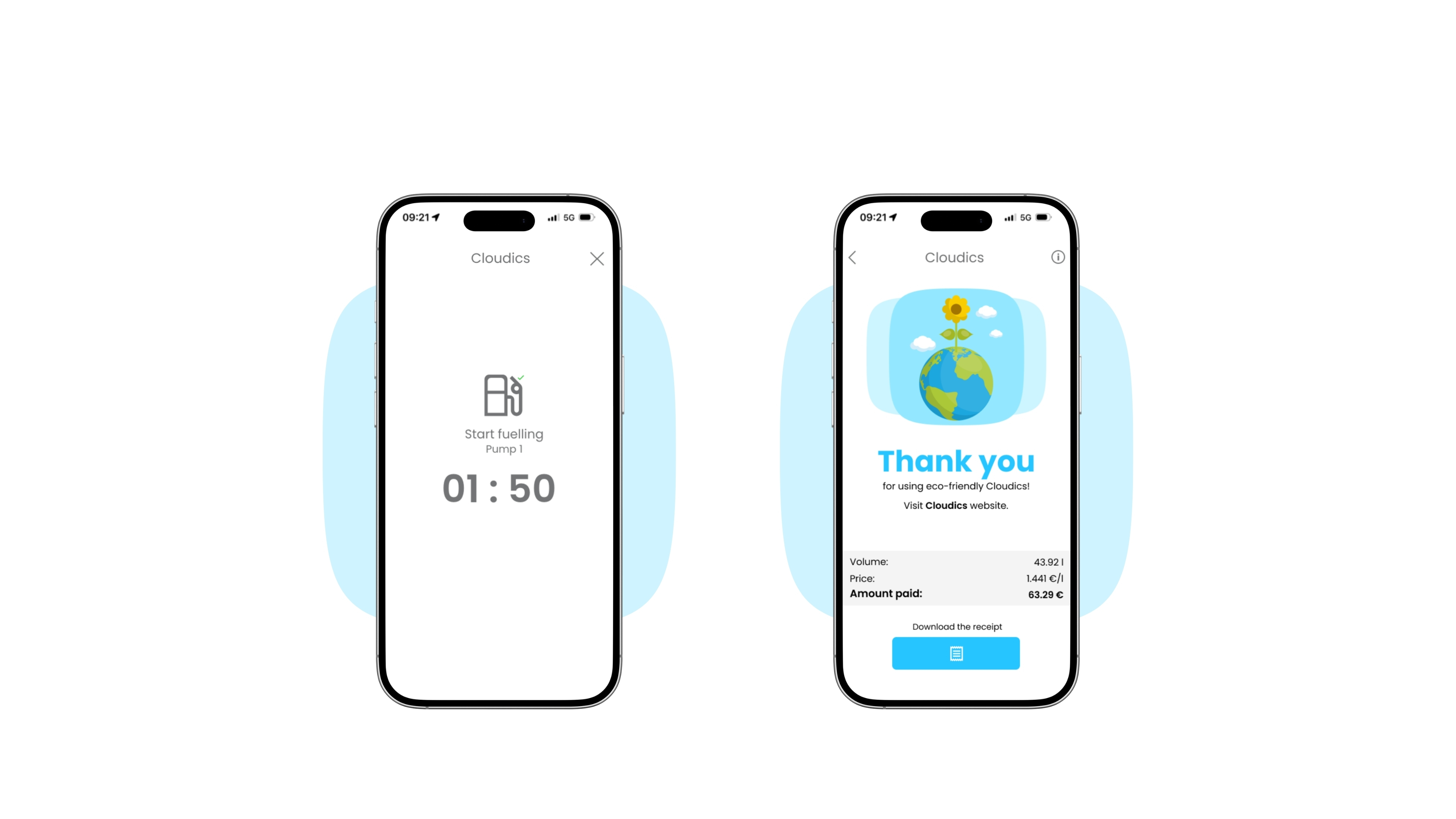
  • 5. Start

    The timer will start, and you have 3 minutes to begin refuelling

    6. Recipts

    View, download or share your receipt

  • Cloudics mobile fuelling

    1. Open

    Open Cloudics App

    2. Location

    Use license plate verification, GPS or scan a QR code
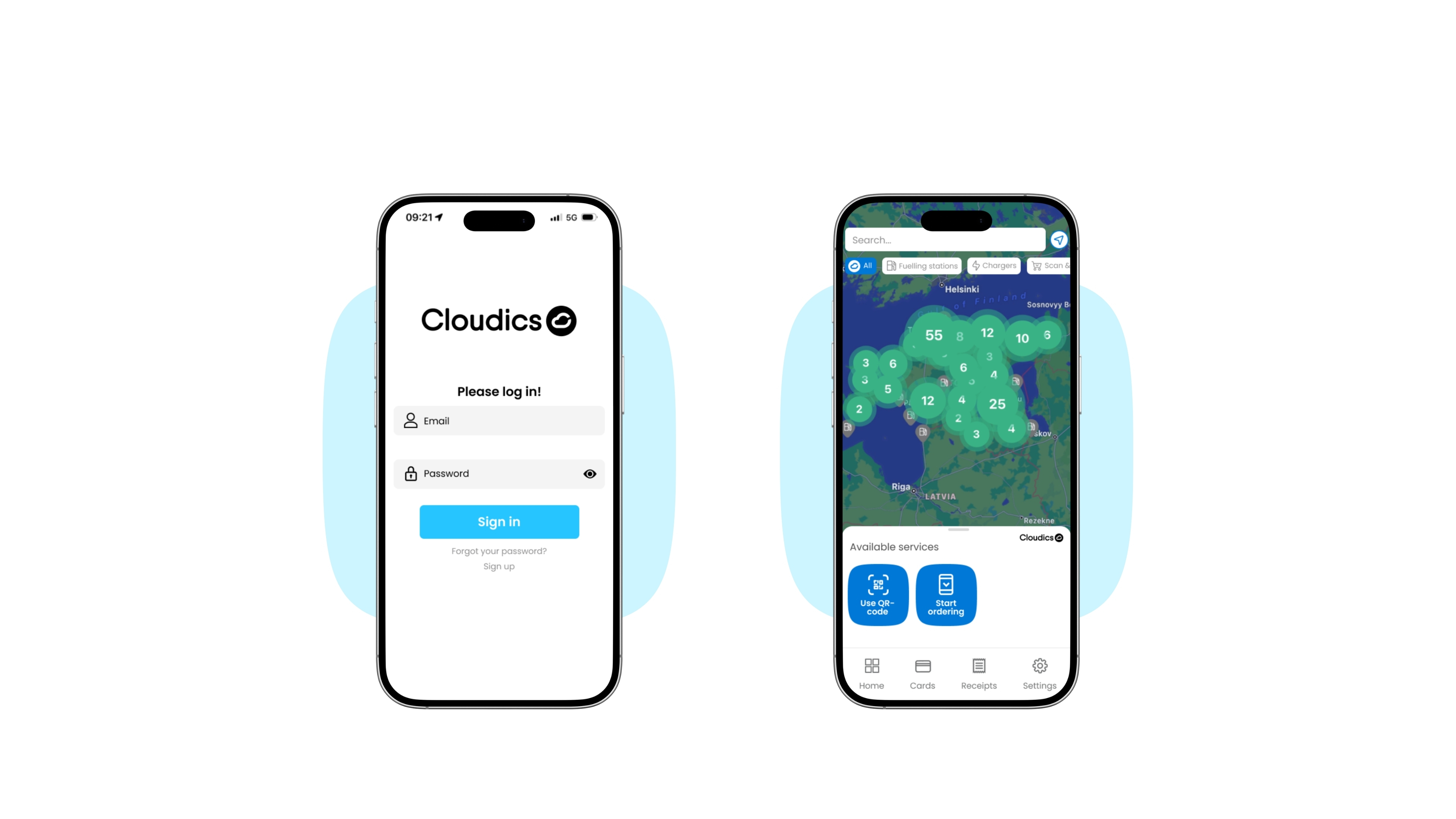
     
  • 3. Payment

    Choose a payment method (various cards can be added)

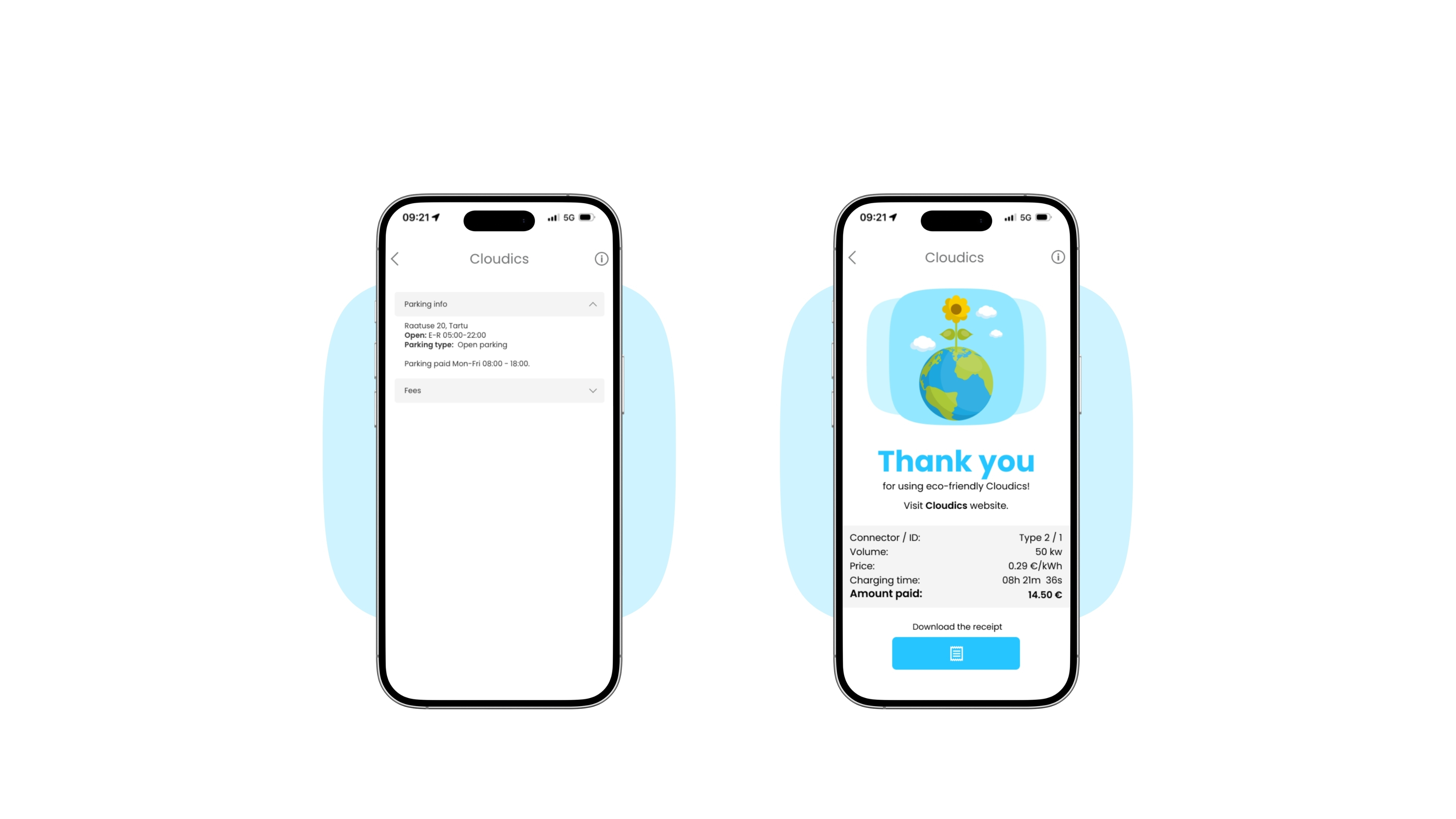
    4. Choose charger

    Select the correct plug type

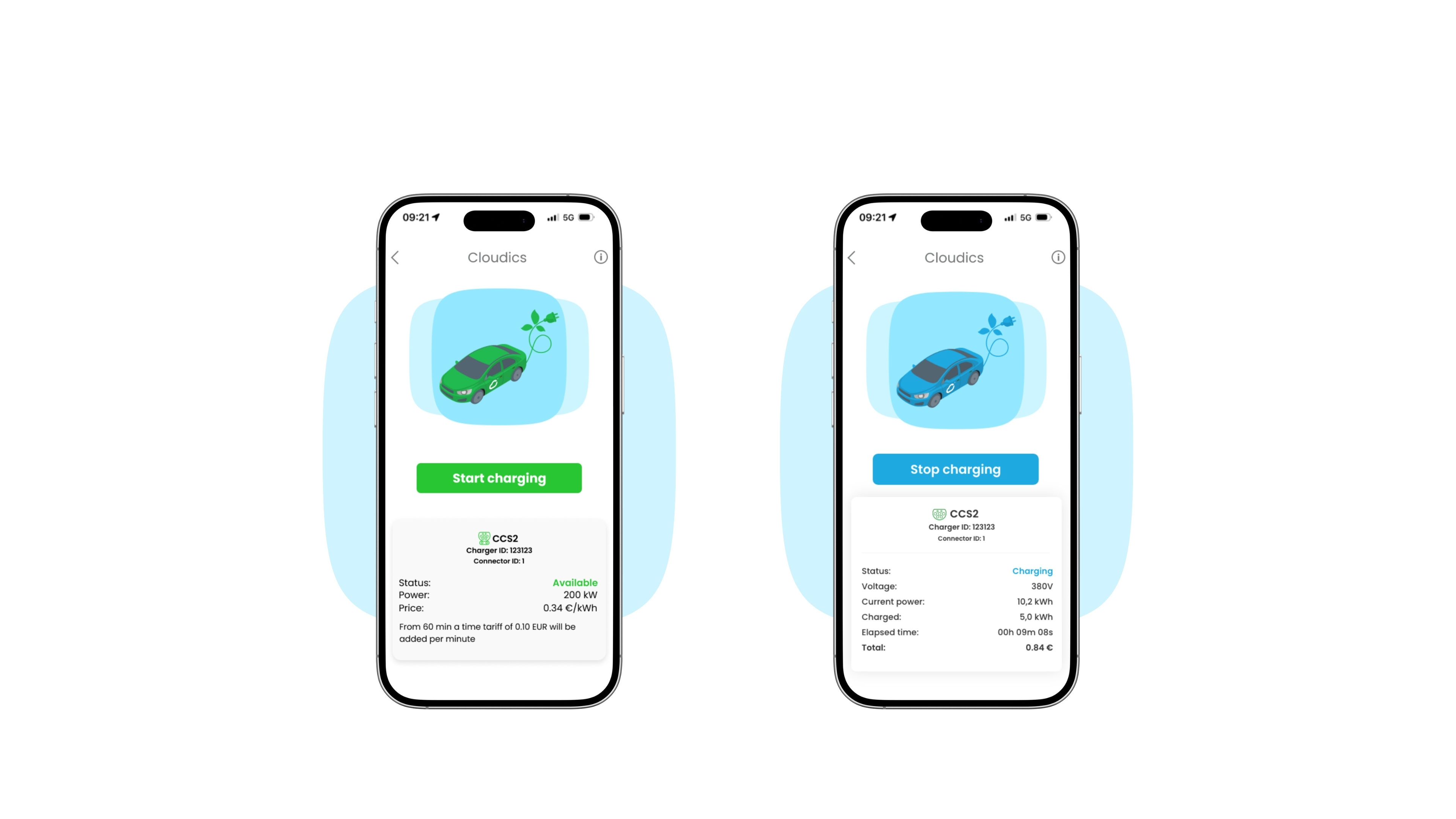
  • 5. Start

    Plug in the connector and start charging

    6. Stop

    Once finished, press 'Stop charging' to release the connector

  • 7. Parking

    See parking information in the charging area

    8. Receipts

    View, download or share your receipt

  • 1. Open

    Open Cloudics App

    2. Location

    Use GPS or scan a QR code
     
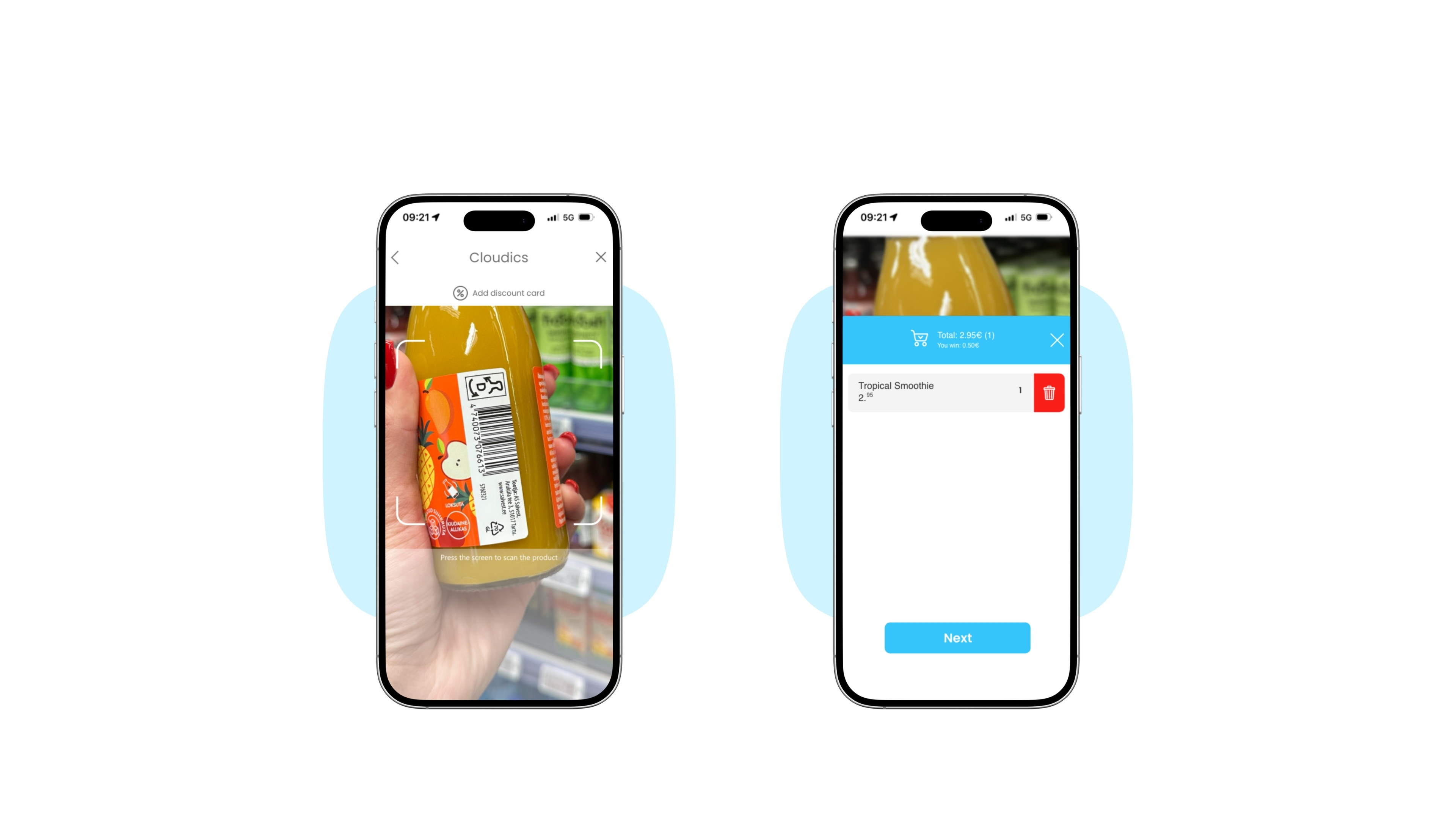
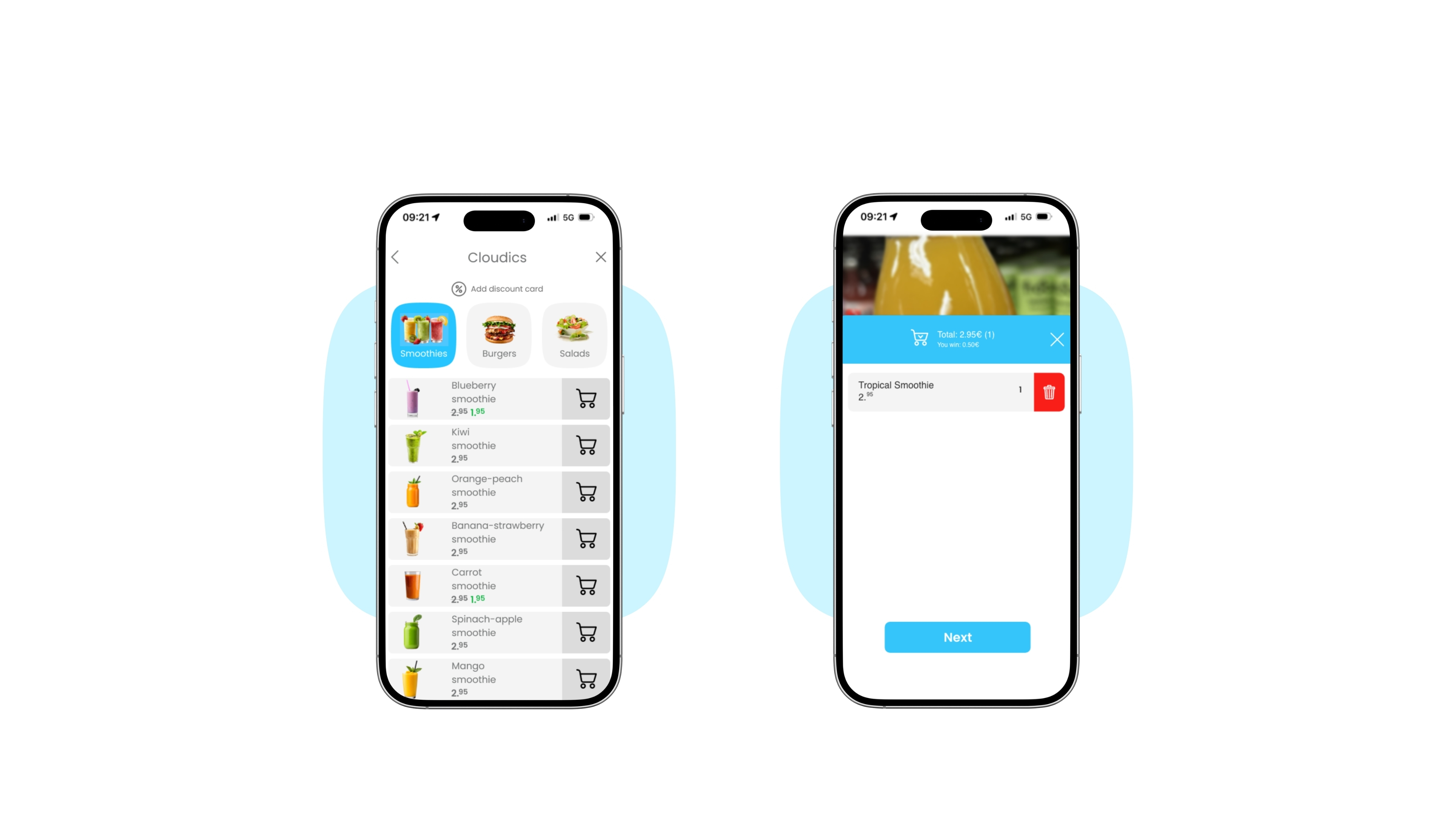
  • 3. Scan products

    Scan the barcode to add the product to your cart

    4. Confirm cart

    Control and confirm your cart

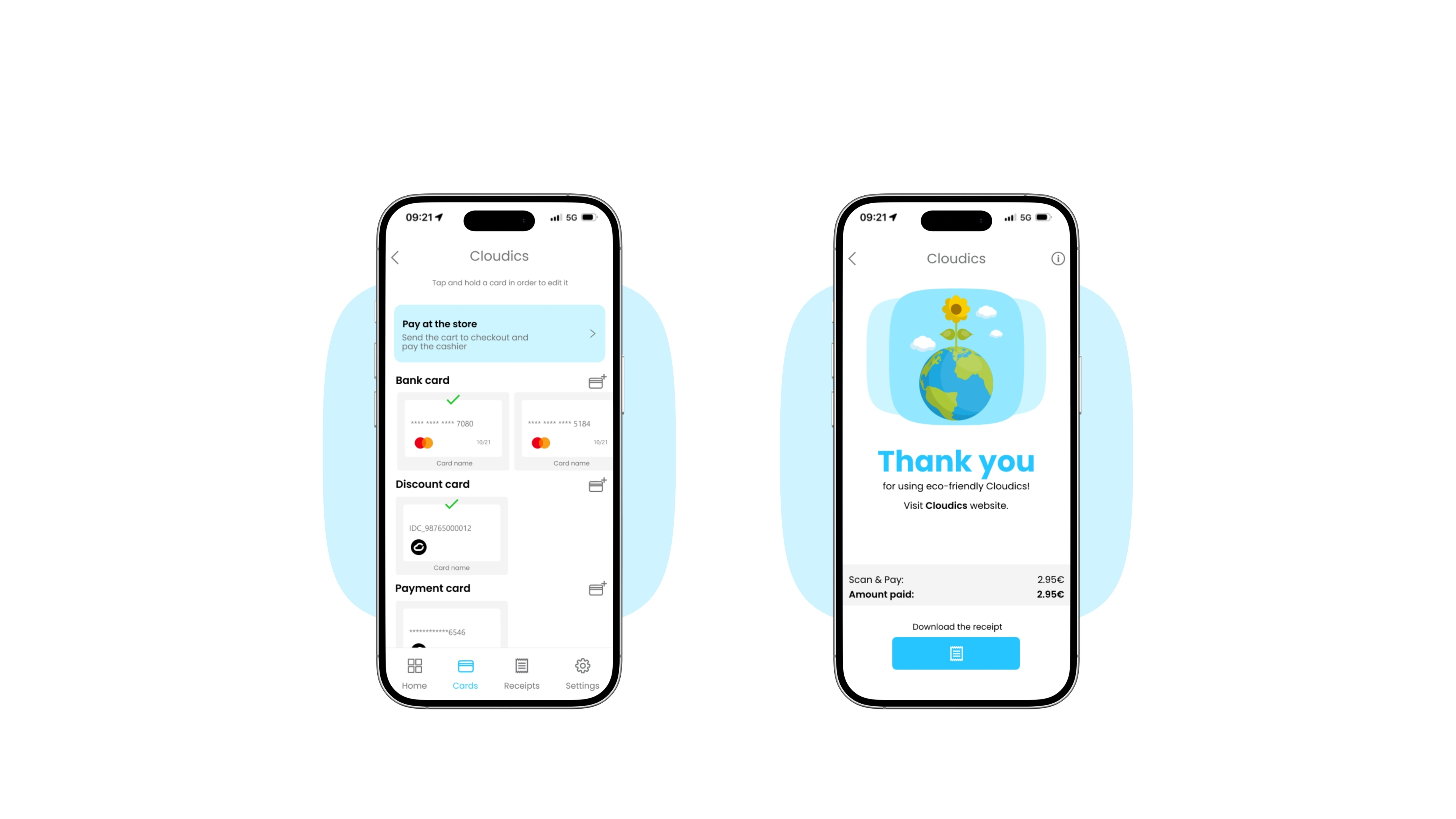
  • 5. Payment

    Choose a payment method (various cards can be added)

    6. Receipts

    View, download or share your receipt

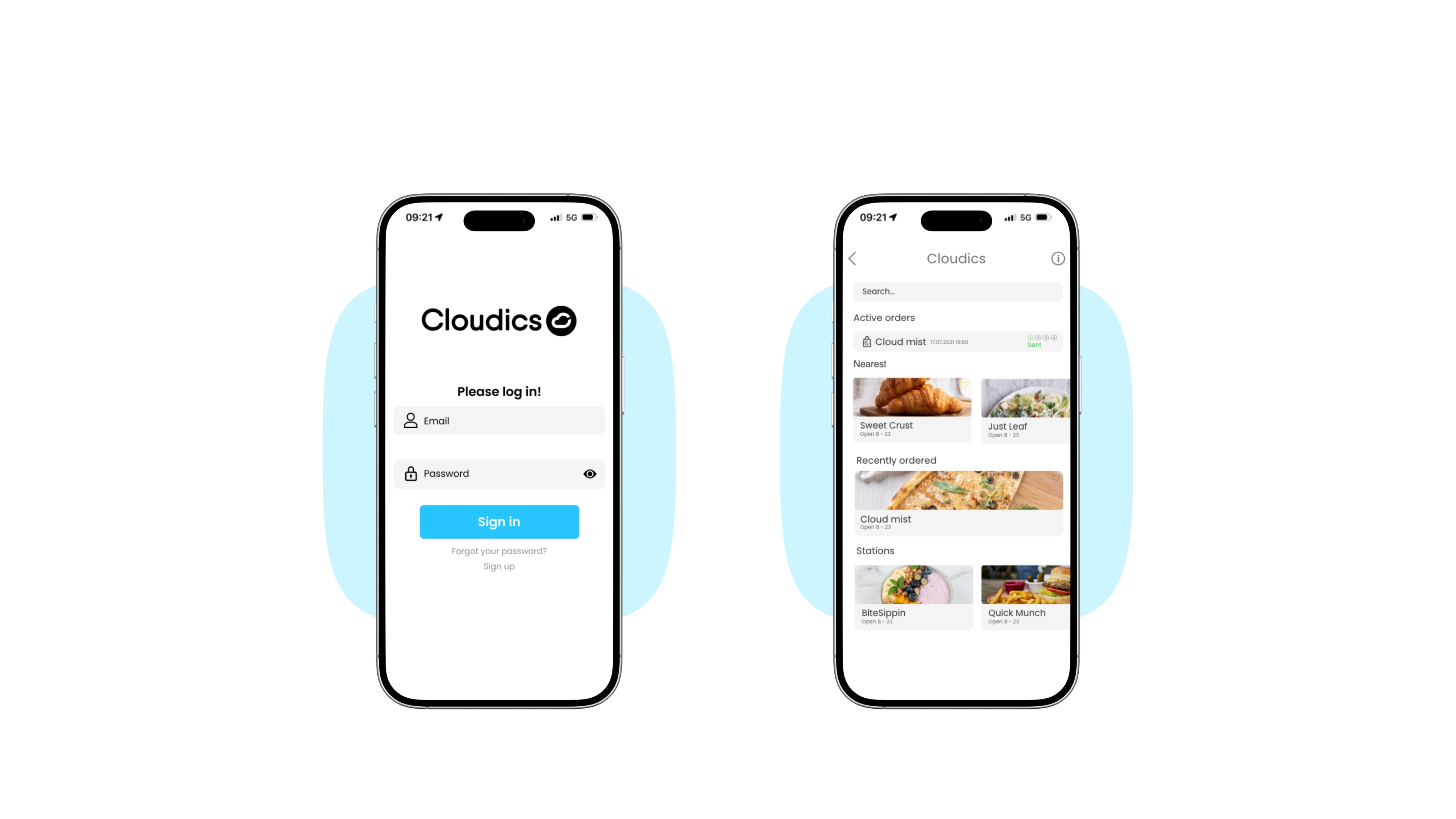
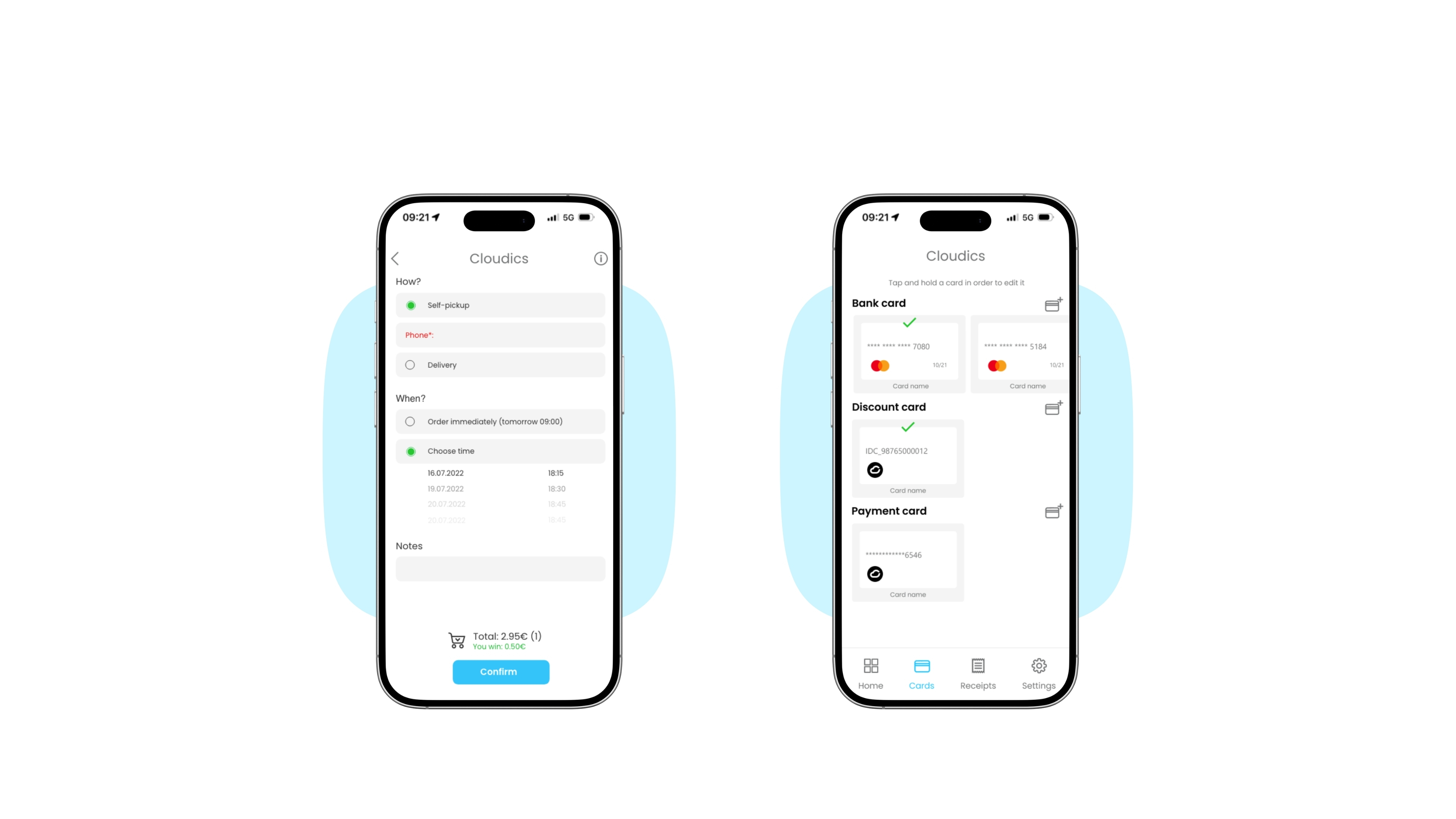
  • 1. Open

    Open Cloudics App

    2. Choose business

    Choose a business from where to pre-order products

     
  • 3. Add to cart

    Add desired products to the shopping cart

    4. View cart

    View the products that are in the shopping cart

  • 5. Place order

    Check order details and place the order

    6. Payment

    Choose a payment method (various cards can be added)

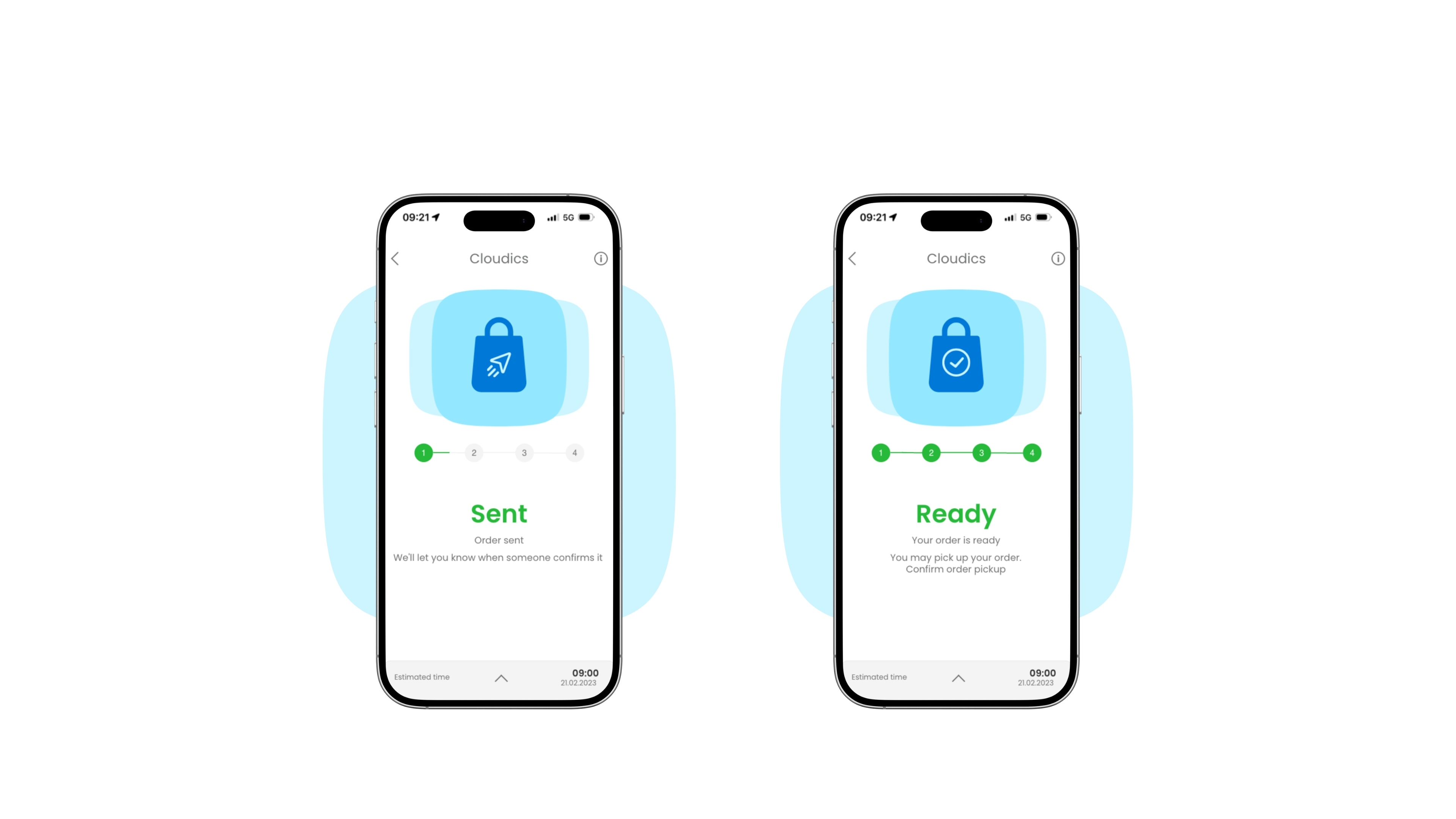
  • 7. Order sent

    The order is placed successfully and is being processed

    8. Order ready

    The order is ready for pick-up

  • 1. Open

    Open Cloudics App

    2. Location

    Use GPS or scan a QR code
     
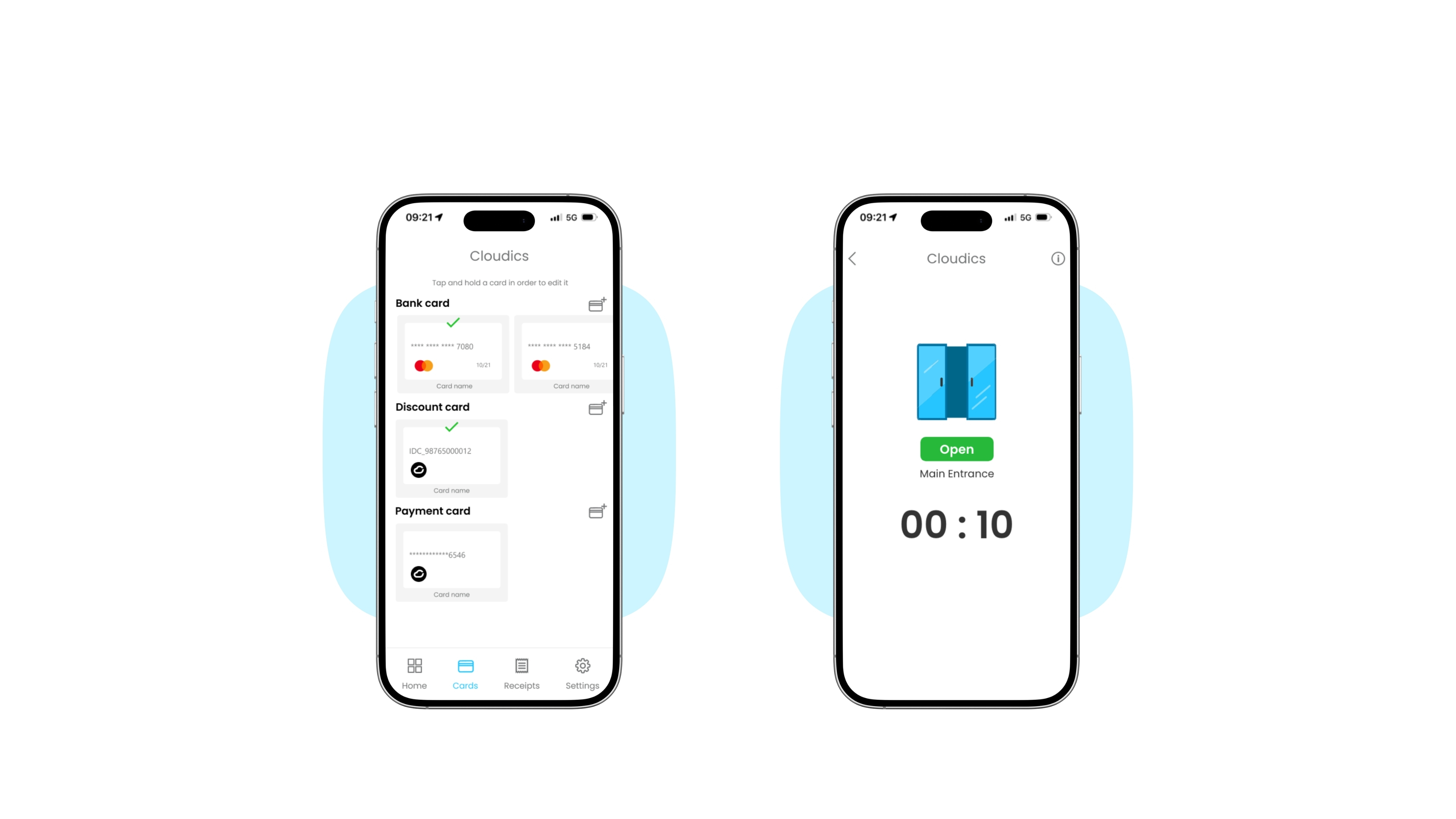
  • 3. Payment

    Choose a payment method (various cards can be added)
    4. Door open

    You have 10 seconds to enter

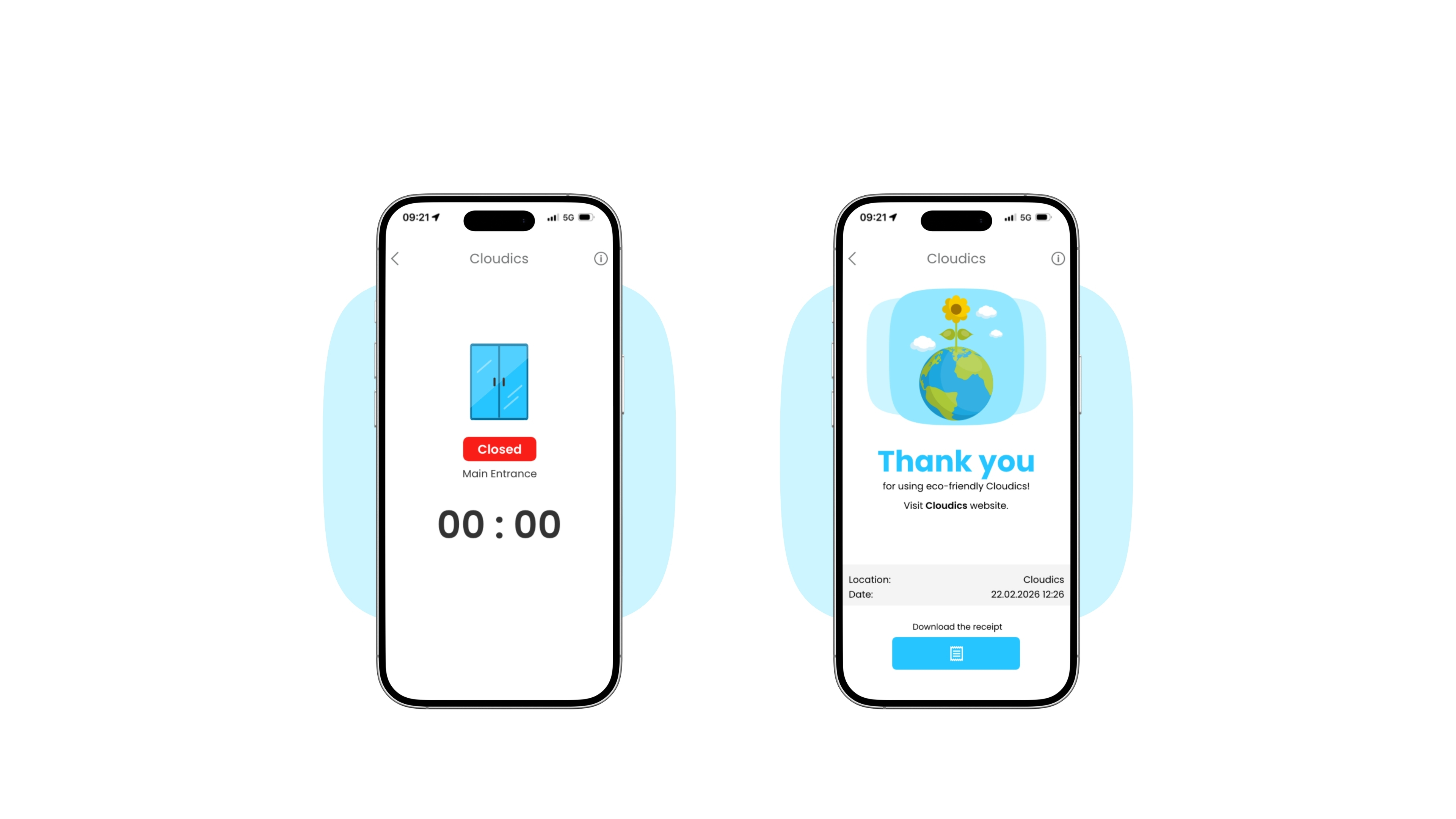
  • 5. Door Closed

    The door is now closed

    6. Receipts

    View, download or share your receipt